RikkaHub Configuration Guide
Use AnyRouter in RikkaHub on Android: add a provider, enter the base_url and api_key, load the model list, and pick a model to start chatting on your phone.
Currently available for Android phones only Official download: https://rikka-ai.com/
- After installing, open the app's main page and tap the image in the top-left corner
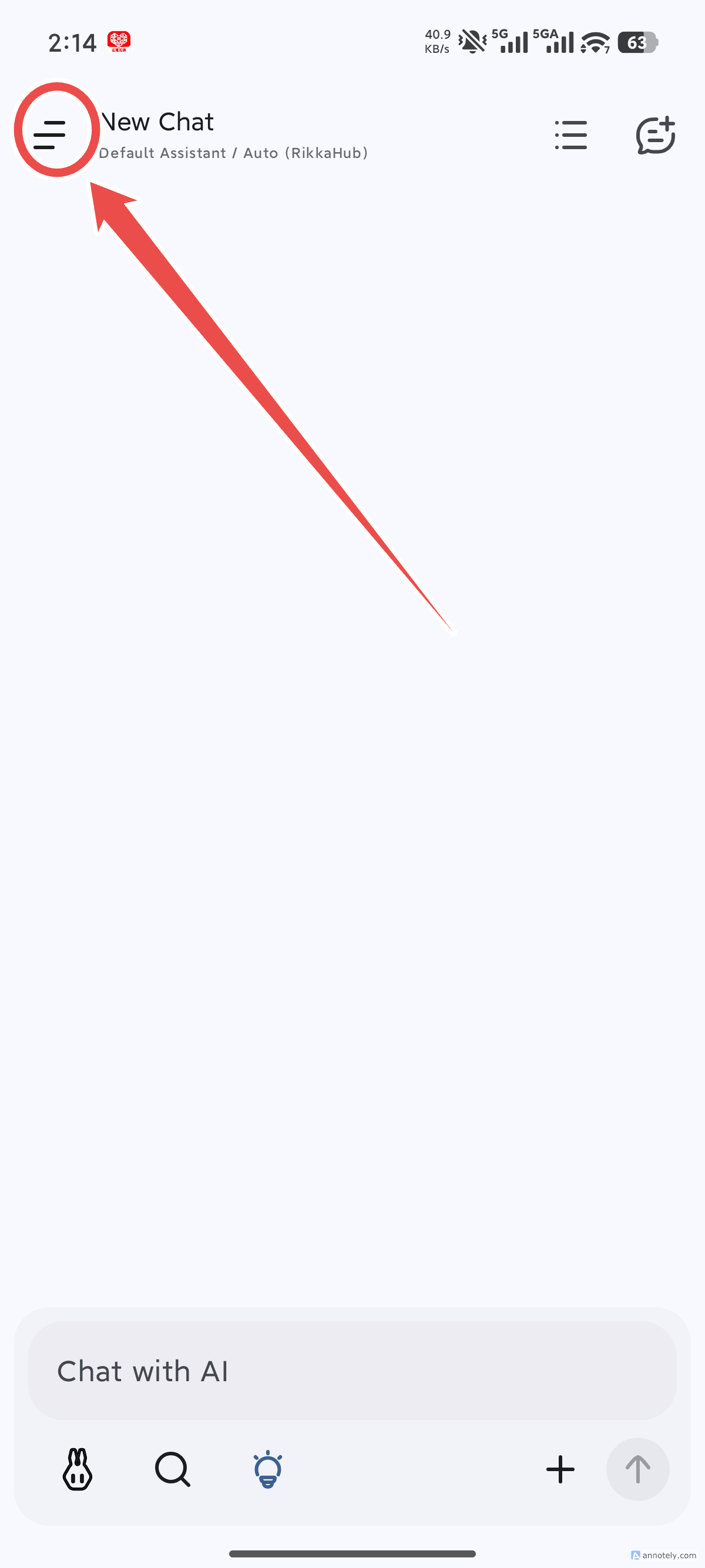
- Tap the settings icon
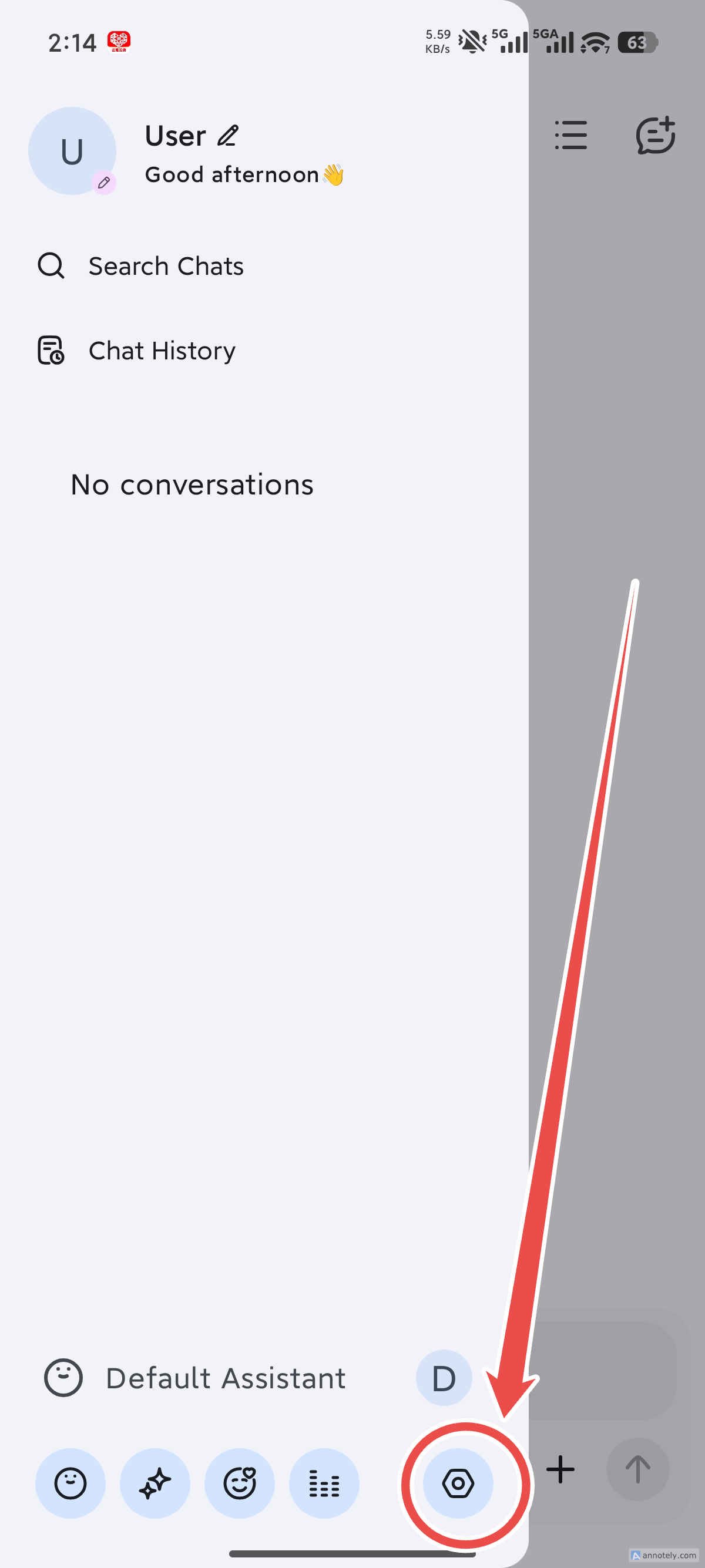
- Tap Providers
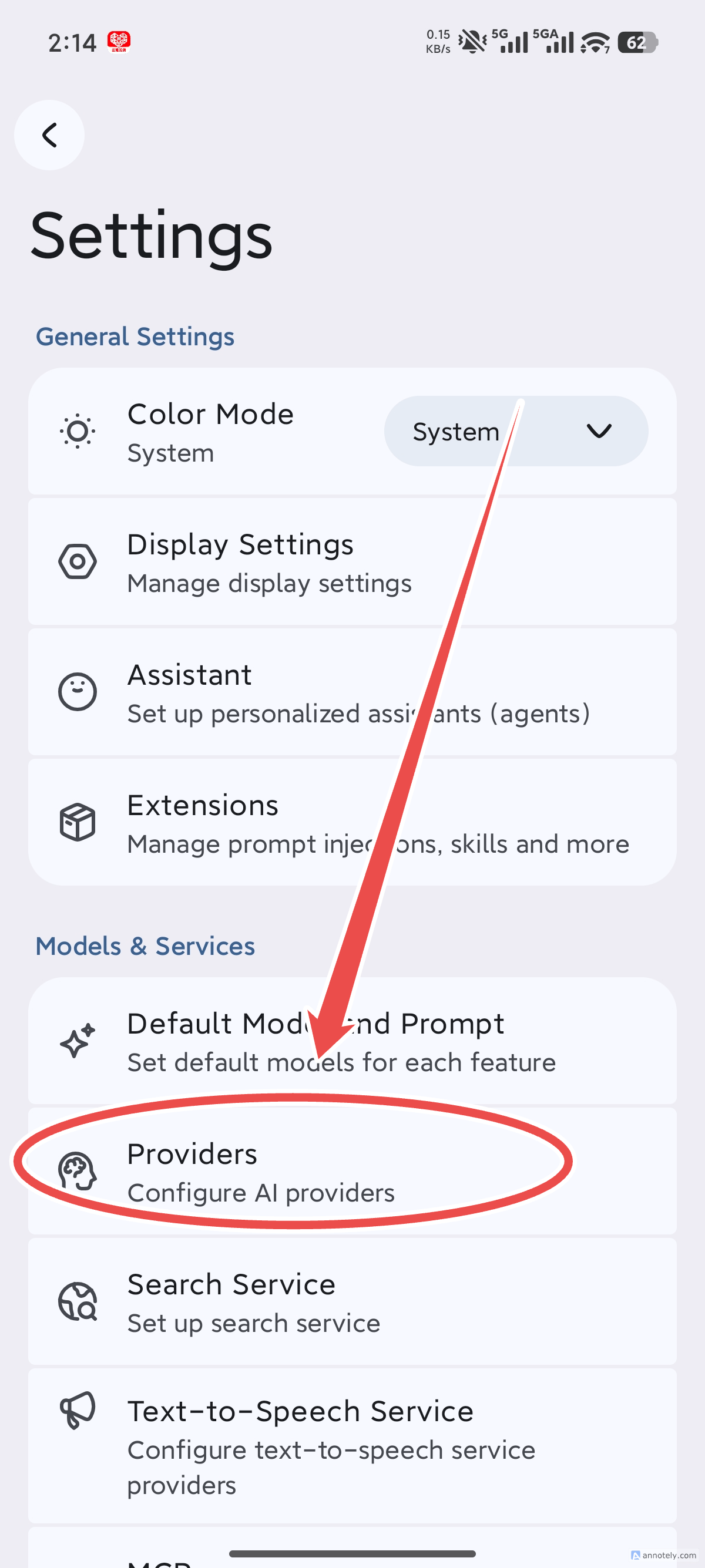
- Tap the plus sign in the top-right corner to add a provider
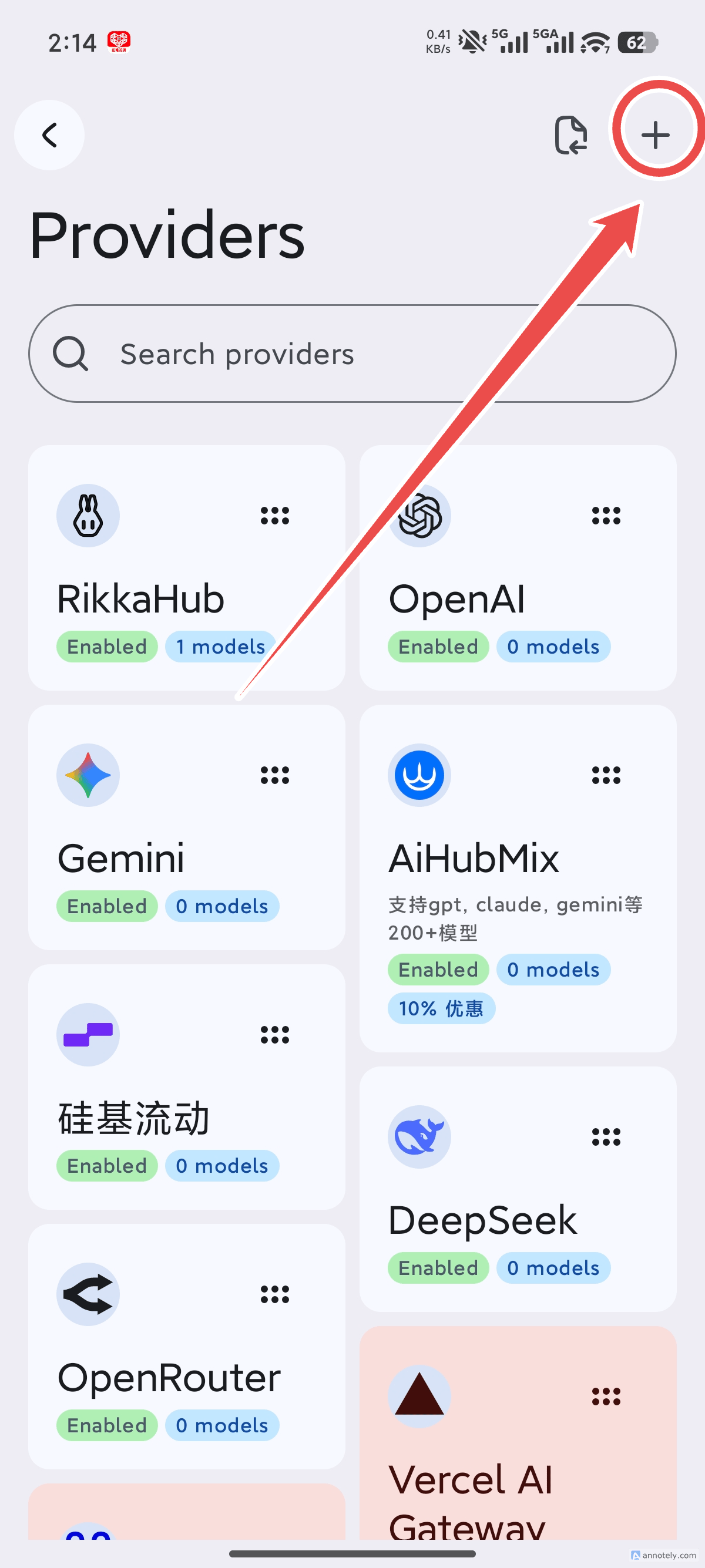
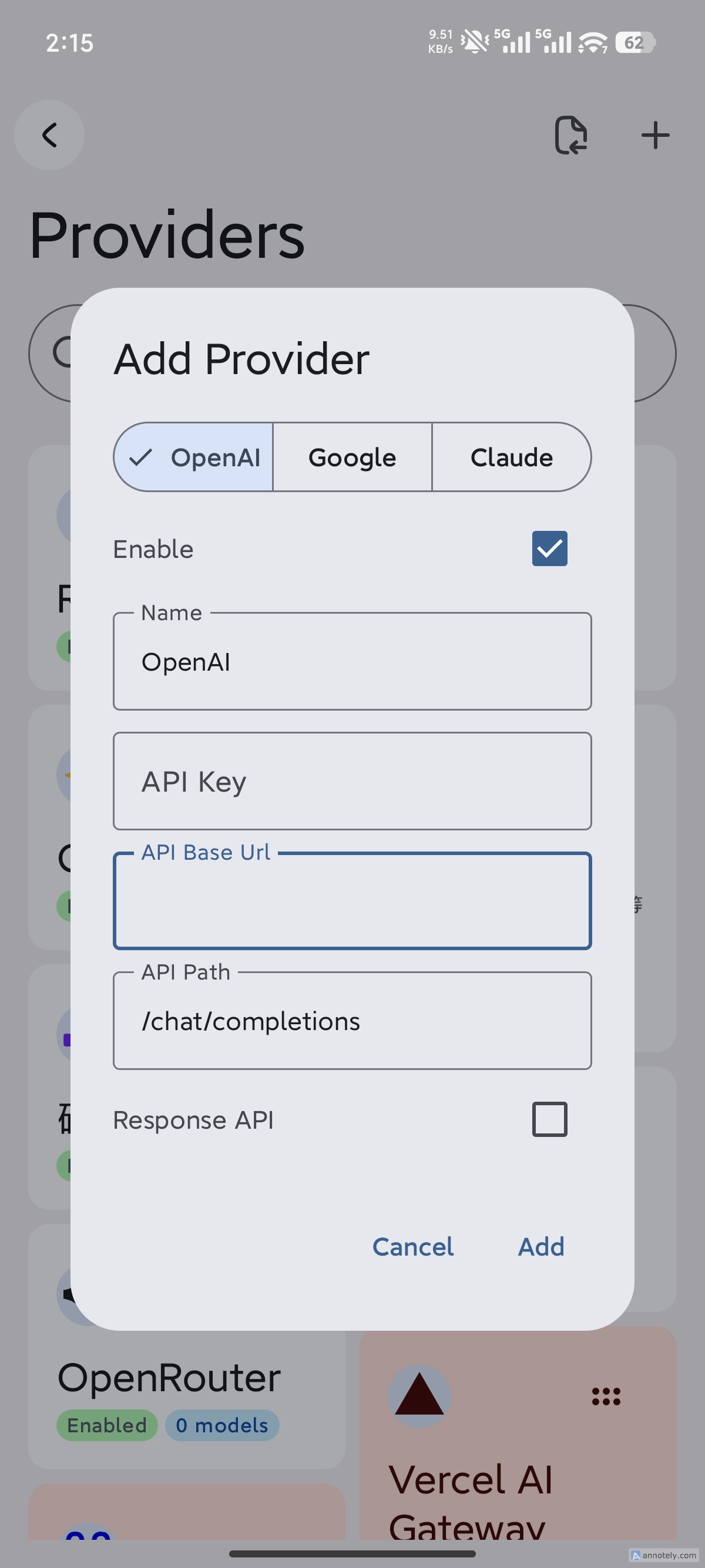
- In the add dialog, fill in the api_key and base_url
For base_url, enter
https://anyrouter.win/v1api_key: get it from the AnyRouter console
-
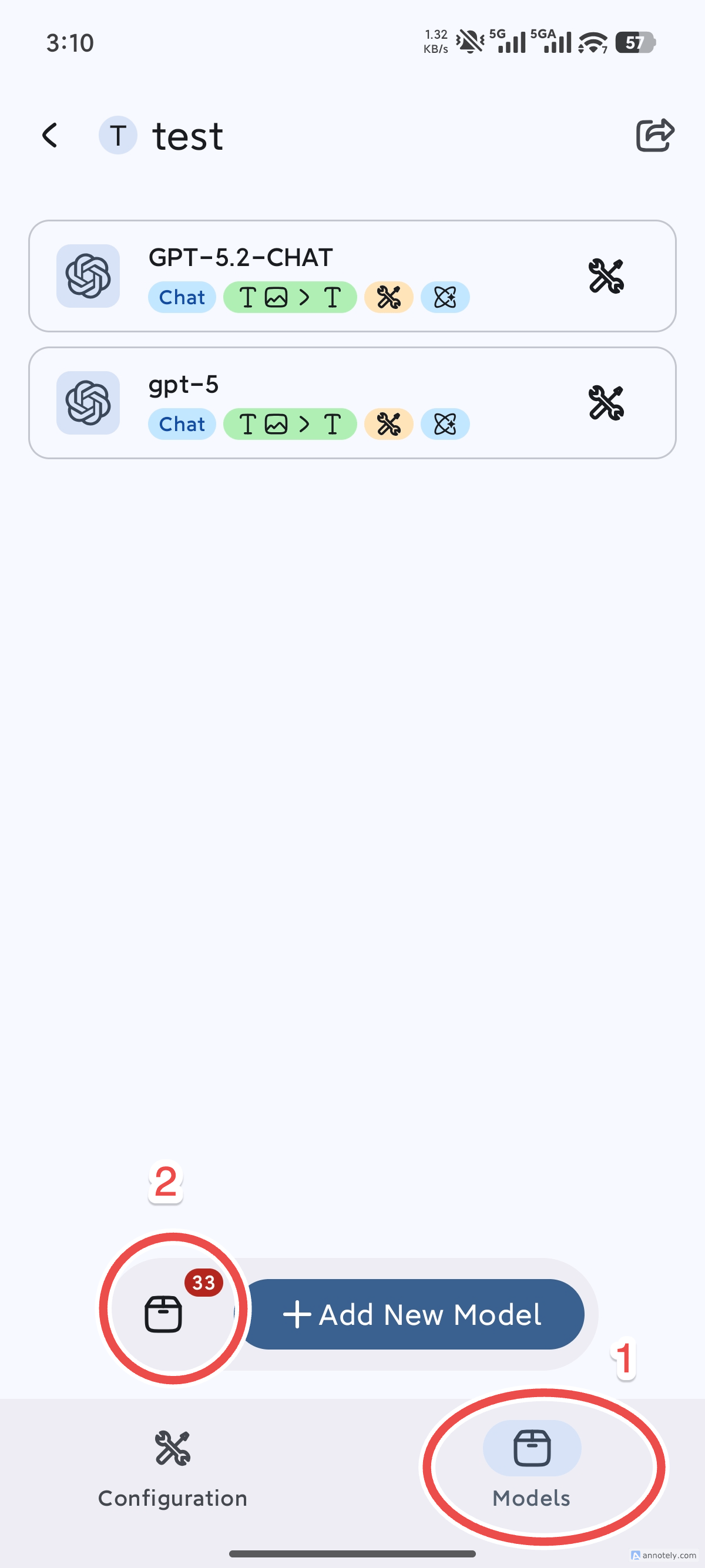
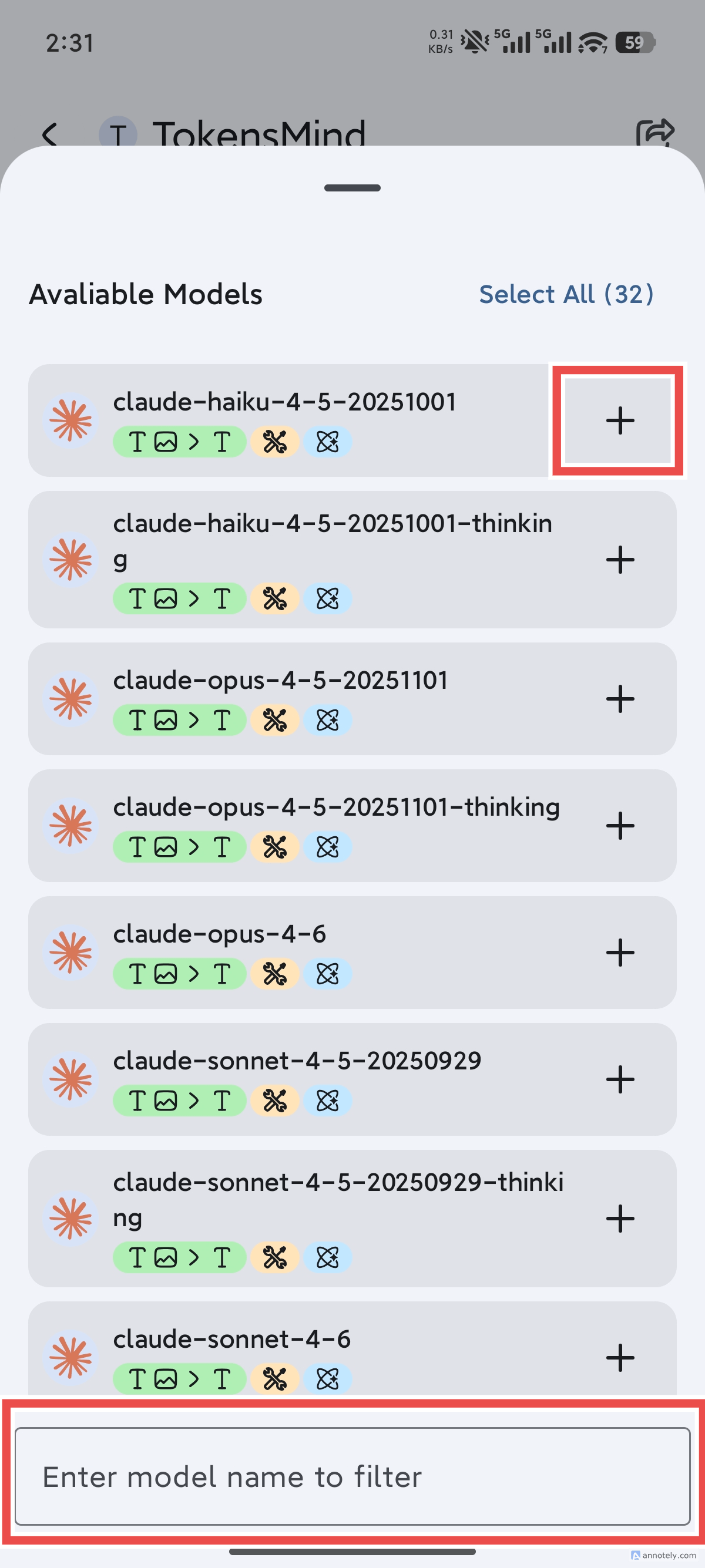
After the provider is added, tap the provider you just added, then tap Models below, tap the model list (it may not load on the first try due to network issues — retry a few times), and select the models you need
-
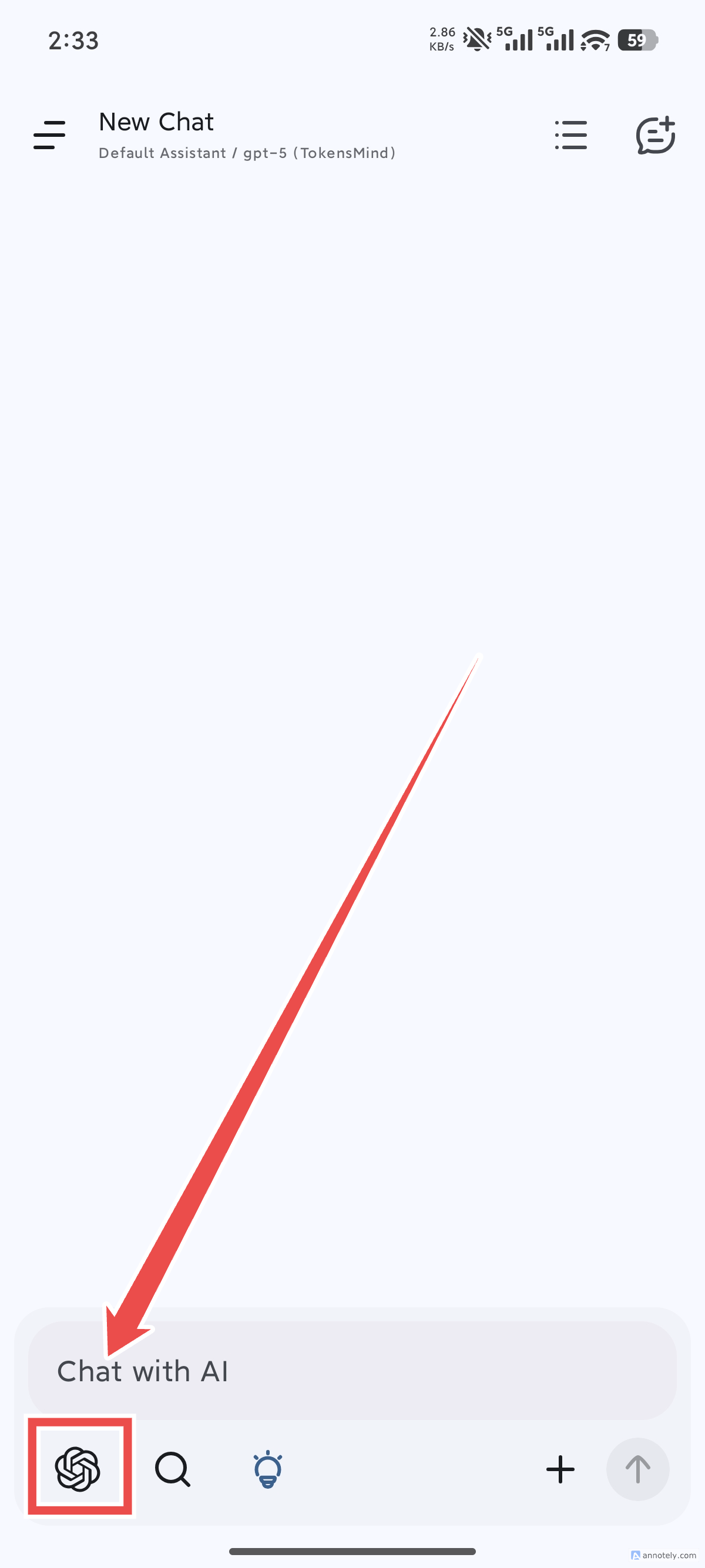
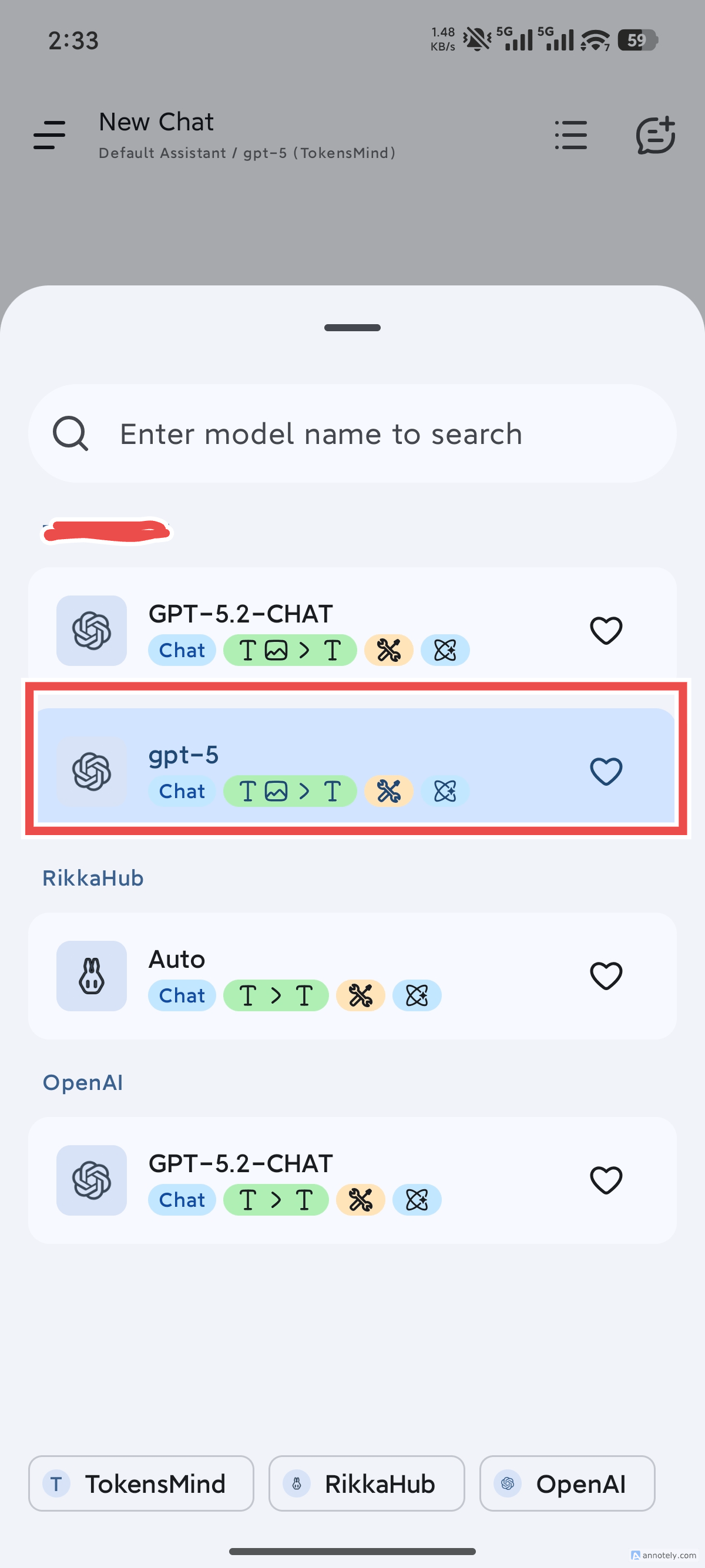
Back on the main page, tap the model icon and select the model you just added to start using it
Qwen Code
Power Qwen Code with any model on AnyRouter in four steps: install the npm package, set OPENAI_API_KEY, OPENAI_BASE_URL and OPENAI_MODEL, verify with /about.
Void Editor
Connect Void Editor, the open-source Cursor alternative, to AnyRouter: set the base URL and API key under OpenAI Compatible, add models, and fix common errors.