Hermes
Set up Hermes Agent, the open-source self-learning AI agent, with AnyRouter: install it and configure a custom endpoint, base_url and API key via hermes model.
Hermes Agent (Hermes): AnyRouter API Setup Guide
1. Introduction
Hermes Agent is an open-source autonomous AI agent framework developed by Nous Research, with "closed-loop self-learning" capabilities. Unlike other AI tools that forget everything after a single conversation, Hermes's core strengths are persistent cross-session memory and an automatic skill distillation system (Skills System).
After completing a complex task on its own or via tools, it evaluates the outcome and automatically packages it as a "skill card". The next time it encounters a similar task, it can retrieve and invoke that skill directly — getting smarter the more you use it. Hermes uses a decoupled design that is not tied to any single model vendor, and it can seamlessly connect to all kinds of third-party LLM APIs via native configuration or the command line.
2. Download and Install on Different Platforms
Hermes Agent supports macOS, Linux, and Windows (WSL2) environments.
1. Prerequisites
Make sure your system has the following installed:
- Python 3.10+
- Node.js 18+
2. Linux, macOS, WSL2, Termux installation
Open a terminal and run the official one-line install script:
curl -fsSL https://raw.githubusercontent.com/NousResearch/hermes-agent/main/scripts/install.sh | bashAfter installation, verify that it succeeded:
hermes --version3. Windows
Since Hermes relies on low-level terminal tooling, we recommend running it in Windows's WSL2 (Ubuntu 22.04+) subsystem.
Run this in PowerShell:
iex (irm https://raw.githubusercontent.com/NousResearch/hermes-agent/main/scripts/install.ps1)3. Changing the Configuration to Connect a Third-Party API
Hermes provides minimal model management commands, and it also supports manually connecting to OpenAI-compatible third-party API endpoints by editing its environment configuration file.
Method 1: Quick switching with the built-in CLI (recommended)
Hermes supports interactive configuration. Just type the following command in the terminal:
hermes modelAn interactive menu pops up, listing mainstream third-party providers (such as OpenRouter, OpenAI, Anthropic, DeepSeek, MiniMax, etc.). Select a provider and enter your API Key to complete the configuration automatically.
Tip (migrating from OpenClaw): If you were previously an OpenClaw user, you can import all your configuration and API keys in one go with the migration command:
hermes claw migrate
In the interactive menu, use the up/down arrow keys to move between options and press Enter to confirm
- Select
Custom endpoint
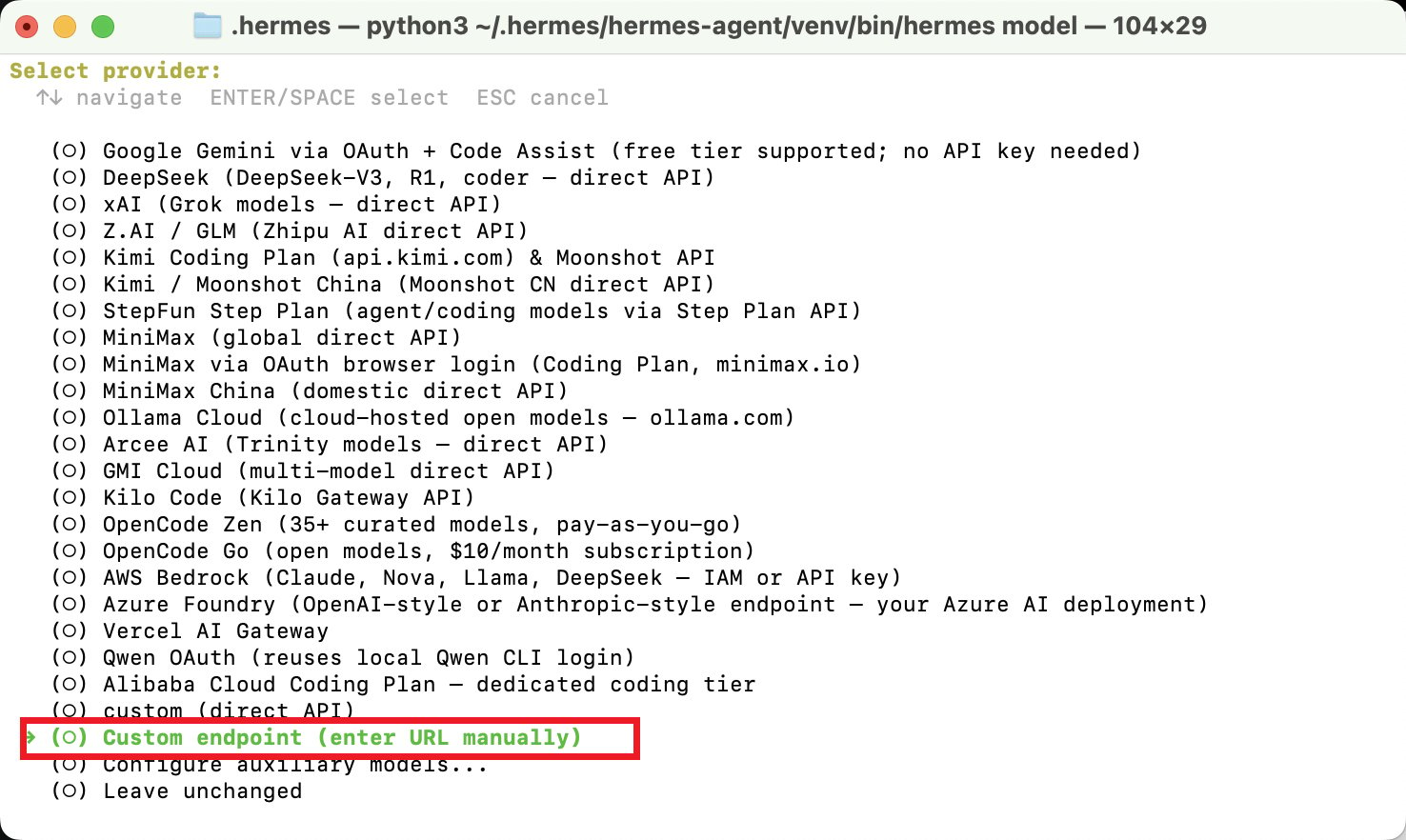
- Enter the AnyRouter URL
https://anyrouter.win/v1
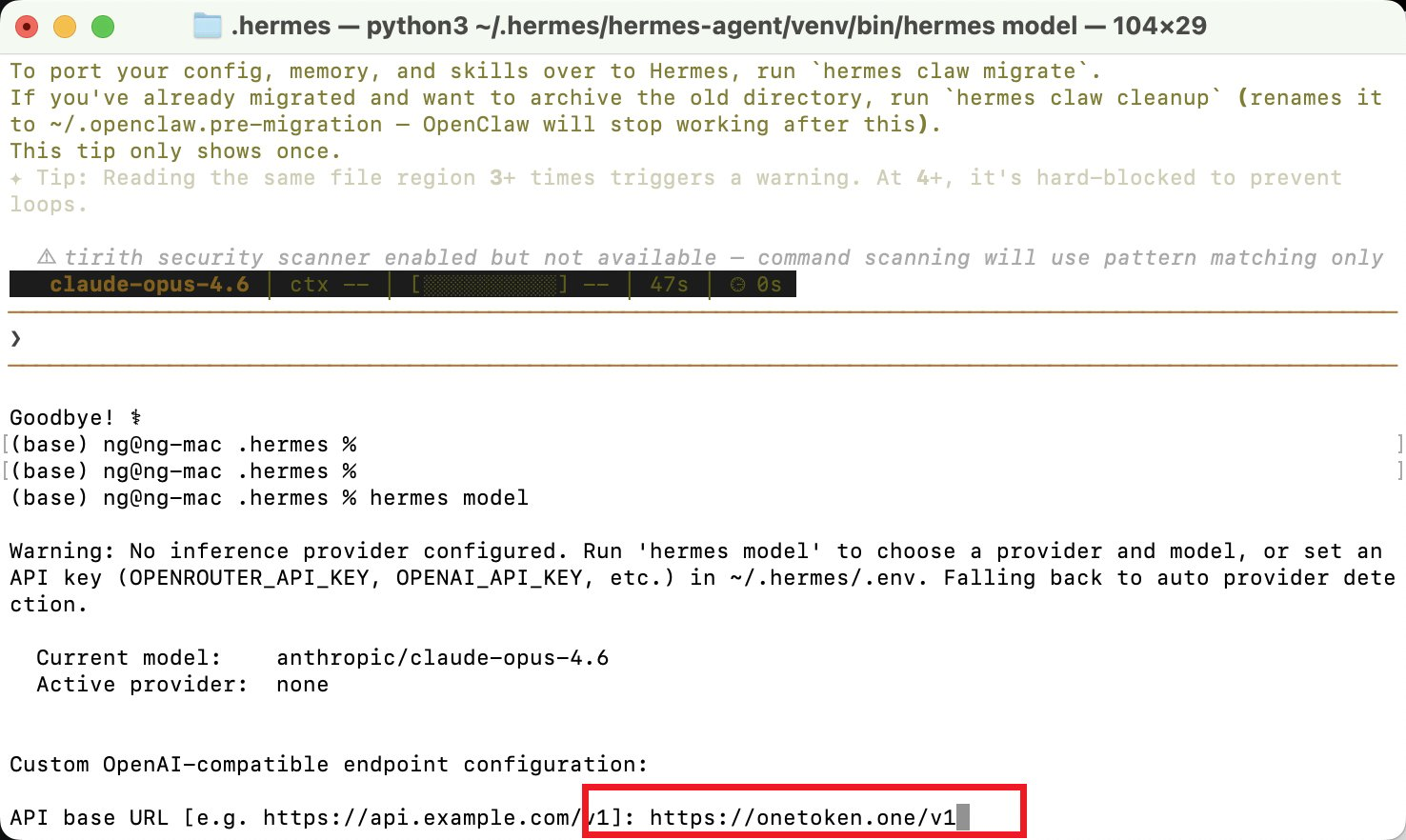
- At the API compatibility option, just type 1 to go to the next step
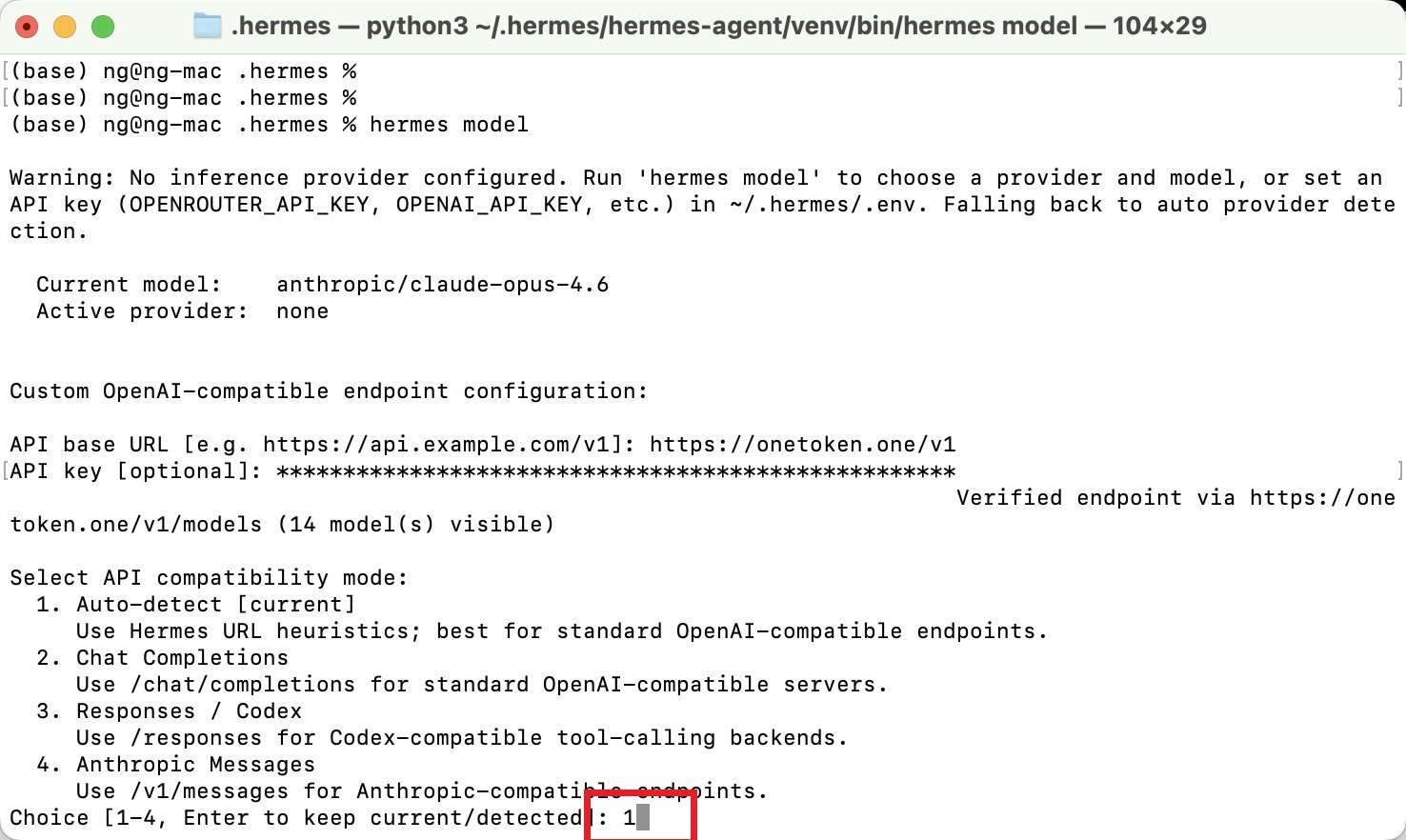
- Enter the model name
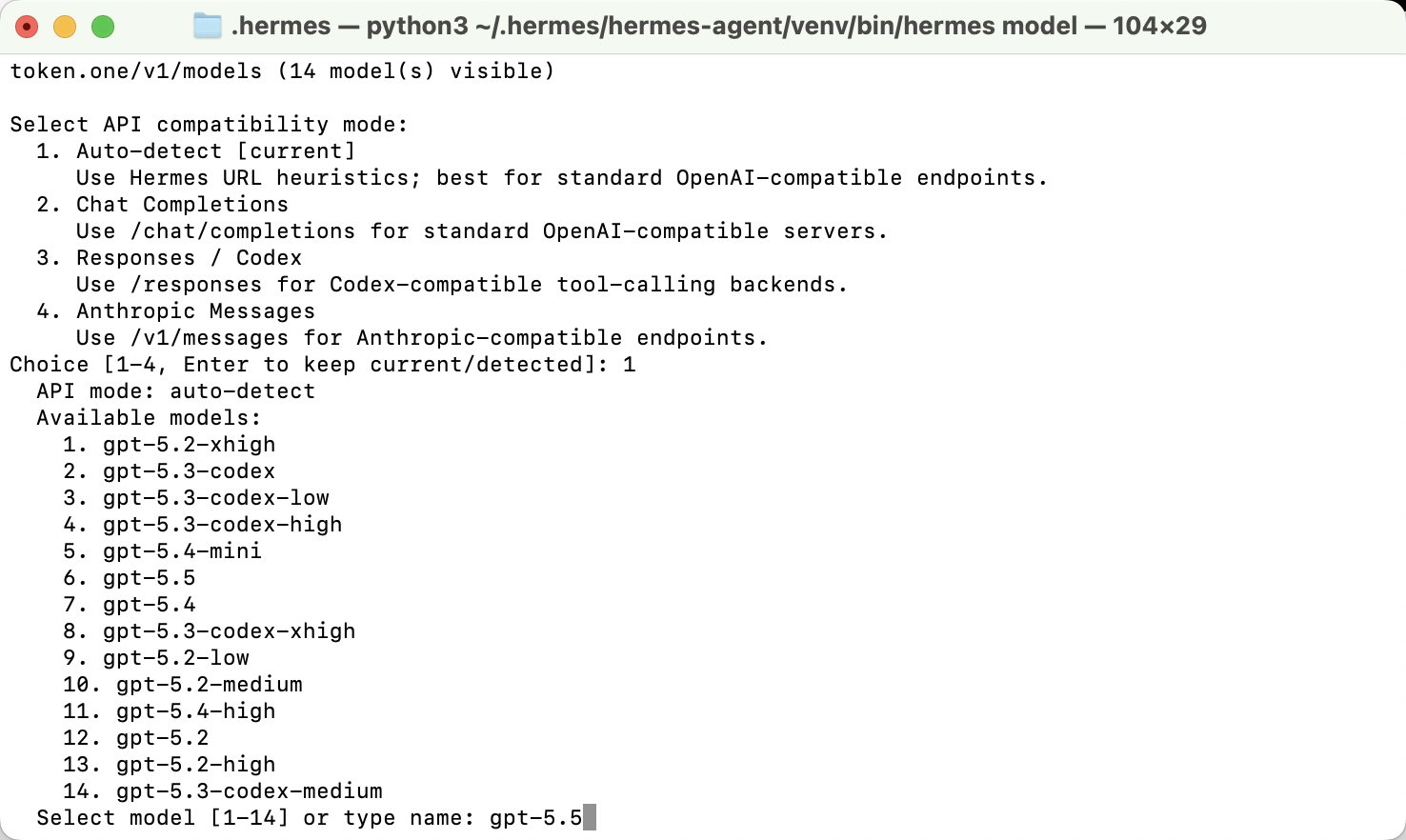
- For the model's context length, just leave it blank and press Enter
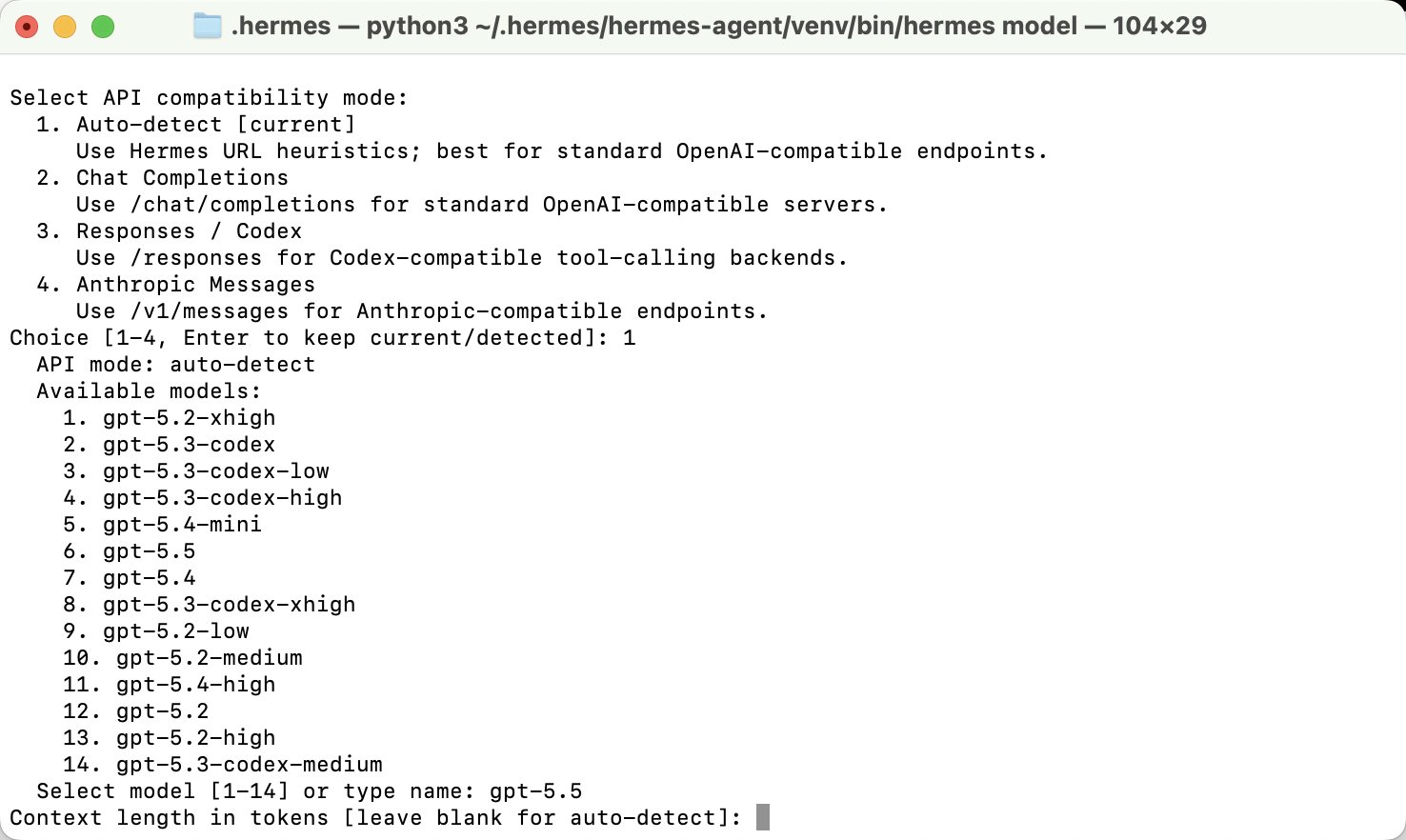
- Enter your display name
AnyRouter
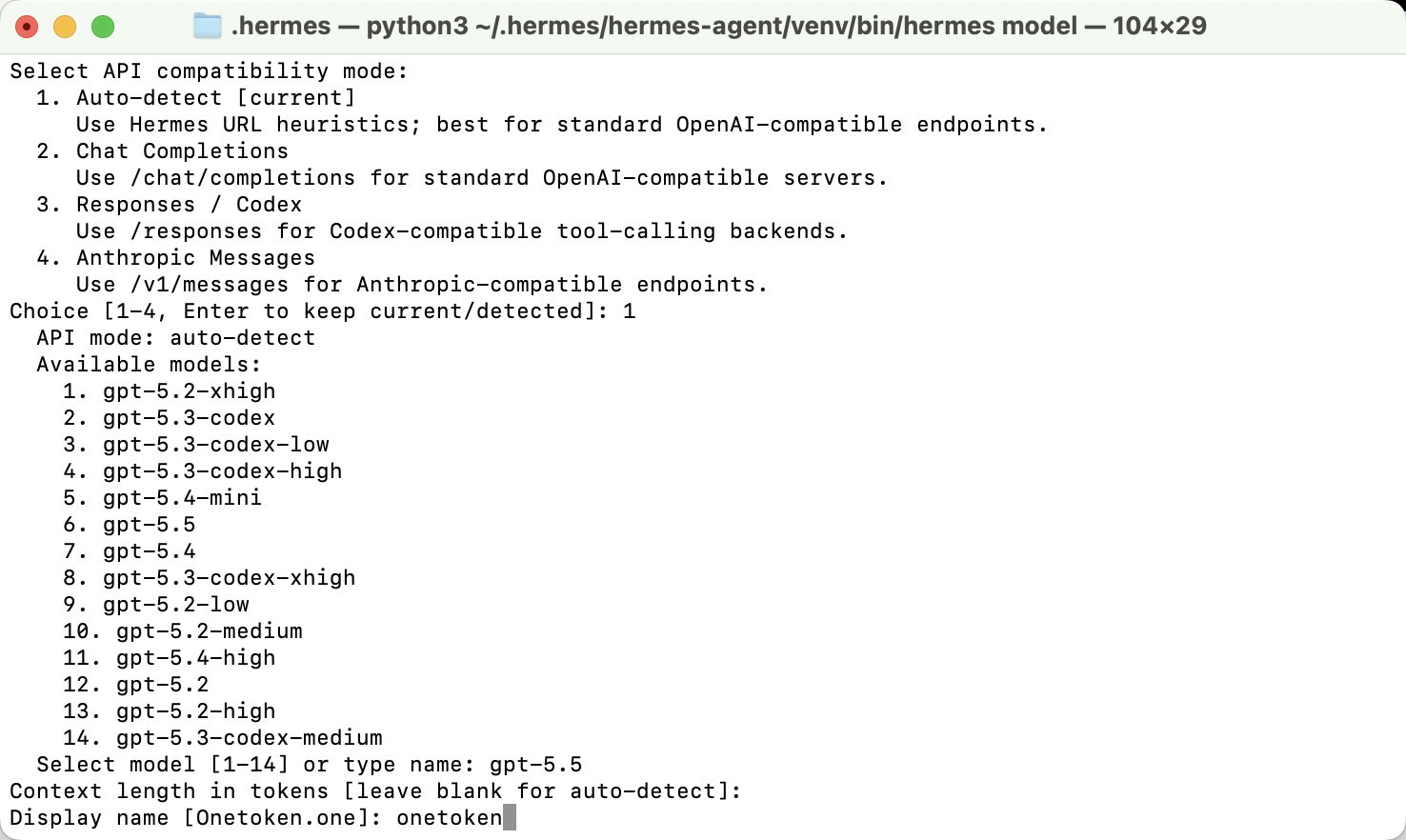
- Once setup is complete, type
hermesin the terminal to start a conversation and check that everything works
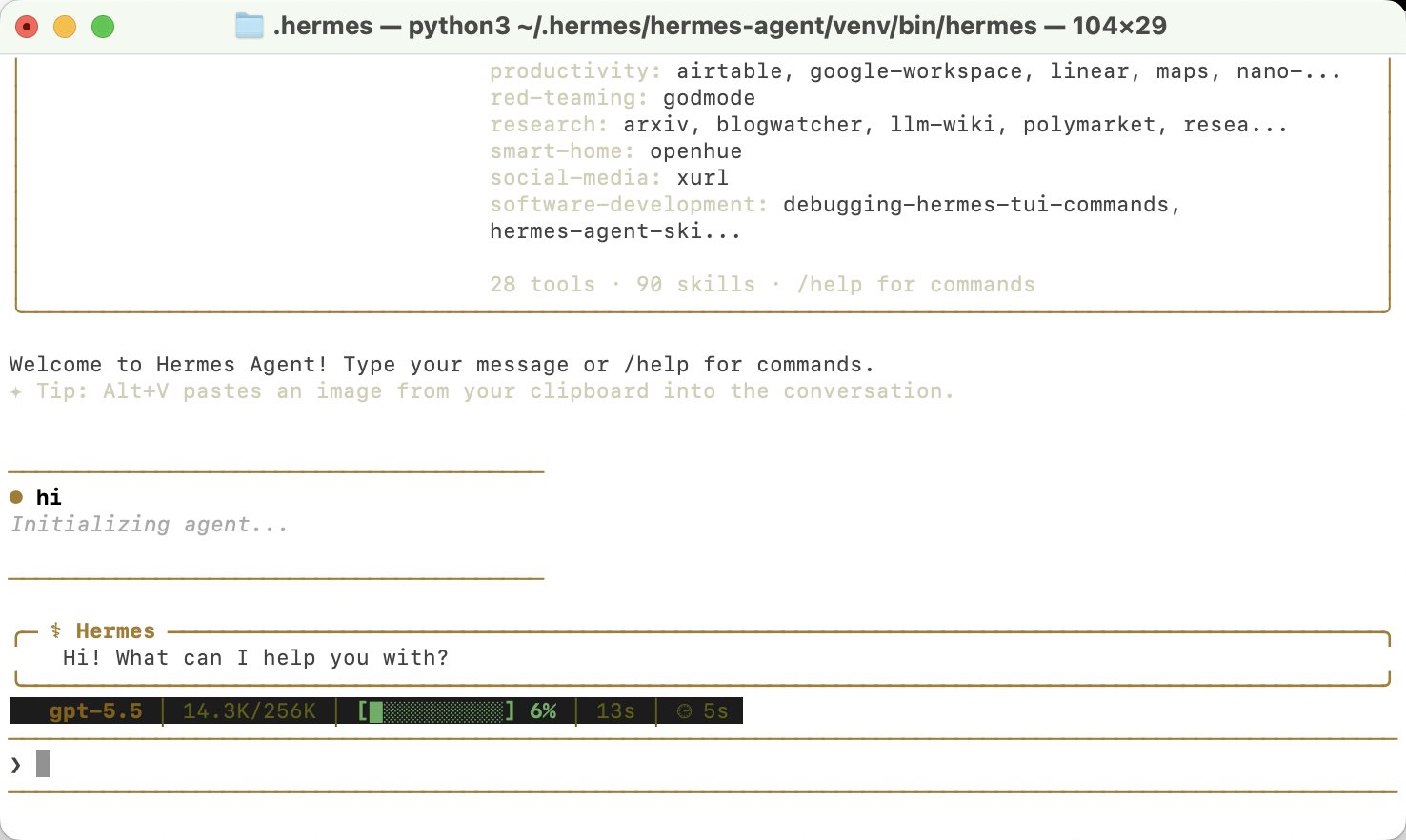
You can run hermes setup at any time later to change the settings
Adding Models in Dify
Add AnyRouter as a model provider in Dify: follow the screenshots, set the API endpoint to anyrouter.win, and enter your API key to call any model.
OpenAI Codex
Run OpenAI Codex via AnyRouter: configure base_url in config.toml and your API key in auth.json or with cc-switch, then use it in the terminal or desktop app.