Qwen Code
Power Qwen Code with any model on AnyRouter in four steps: install the npm package, set OPENAI_API_KEY, OPENAI_BASE_URL and OPENAI_MODEL, verify with /about.
Power Qwen Code with any large language model on the AnyRouter platform.
Quick Setup Guide:
1️⃣ Install the npm package globally
Make sure your Node.js version is >= 20, then run in the terminal:
npm install -g @qwen-code/qwen-code
qwen --version
For more details, see the official repository
2️⃣ Configure environment variables
Set your AnyRouter API key and relay URL in the system environment variables. You can generate an API key on the AnyRouter "Keys" page.
For example, add the following to ~/.zshrc:
export OPENAI_API_KEY="your_anyrouter_key"
export OPENAI_BASE_URL="https://anyrouter.win/v1"
export OPENAI_MODEL="your_model"
On a Mac, you can press ⌘ + ⇧ + . in your home directory to reveal the hidden .zshrc file, then open it with the built-in TextEdit app and add the lines above.
3️⃣ Apply the configuration
After adding the configuration, run source ~/.zshrc in the terminal and press Enter.
4️⃣ Launch and use
Type in the terminal
qwenAfter it starts, type /about to confirm the configuration and press Enter. You will see the current version info and the selected model:
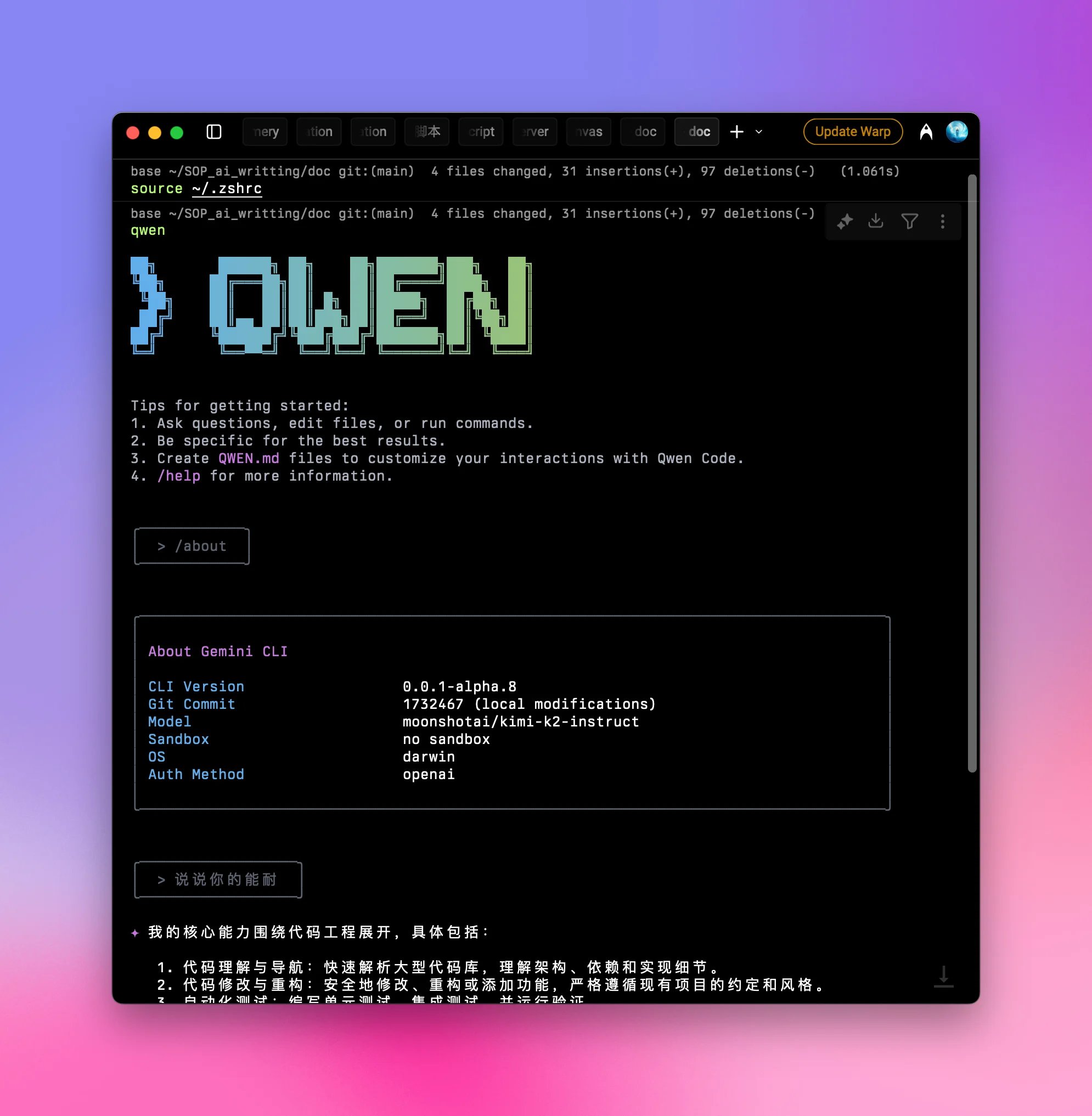
Some users have reported that Qwen Code occasionally gets stuck. We recommend setting limited credits for your API key ↗ to avoid unnecessary waste
Then just use it as normal.
OpenCode
Connect OpenCode, the open-source AI coding assistant, to AnyRouter: choose OpenAI Compatible, set the base URL and API key, and add custom model IDs.
RikkaHub Configuration Guide
Use AnyRouter in RikkaHub on Android: add a provider, enter the base_url and api_key, load the model list, and pick a model to start chatting on your phone.