Coder Configuration
Illustrated guide to configuring the AnyRouter API in Coder: pick the OpenAI provider, set the BaseURL and API key, bind models and run a chat test to verify.
Complete Guide to Configuring the AnyRouter Platform API in Coder
By pairing Coder with the AnyRouter platform, you can easily access a wide range of powerful large language models. Below are the detailed, illustrated configuration steps.
📝 Prerequisites
Before you start, make sure you have the following ready:
- You have registered and logged in to the AnyRouter platform.
- You have visited the AnyRouter API key console and generated your own API Key (keep it safe and confidential).
⚙️ Configuration Steps
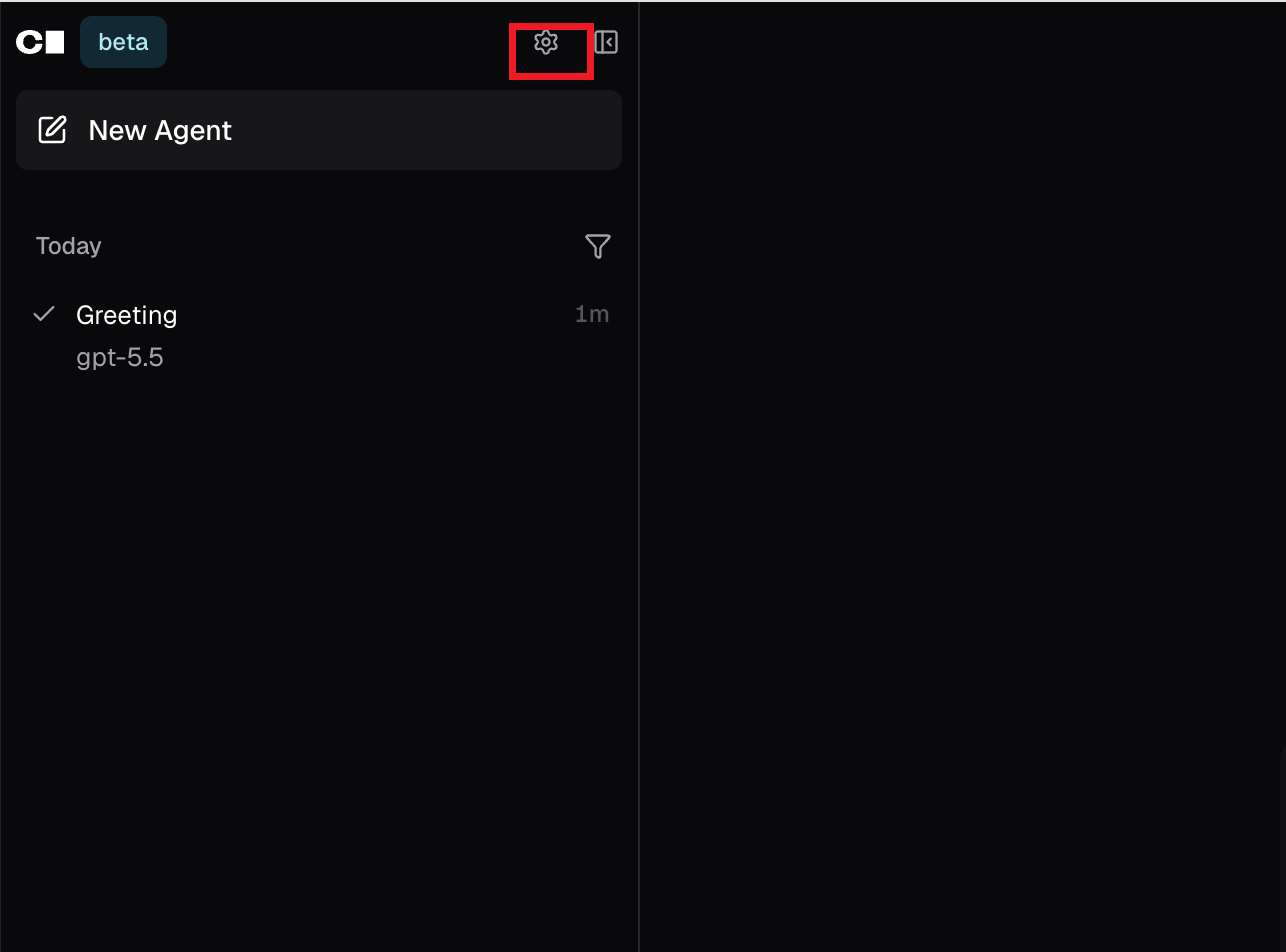
1. Open the Agent settings Open the Coder interface and go to the dedicated Agent page. Find and click the "Settings" icon to enter the configuration backend.
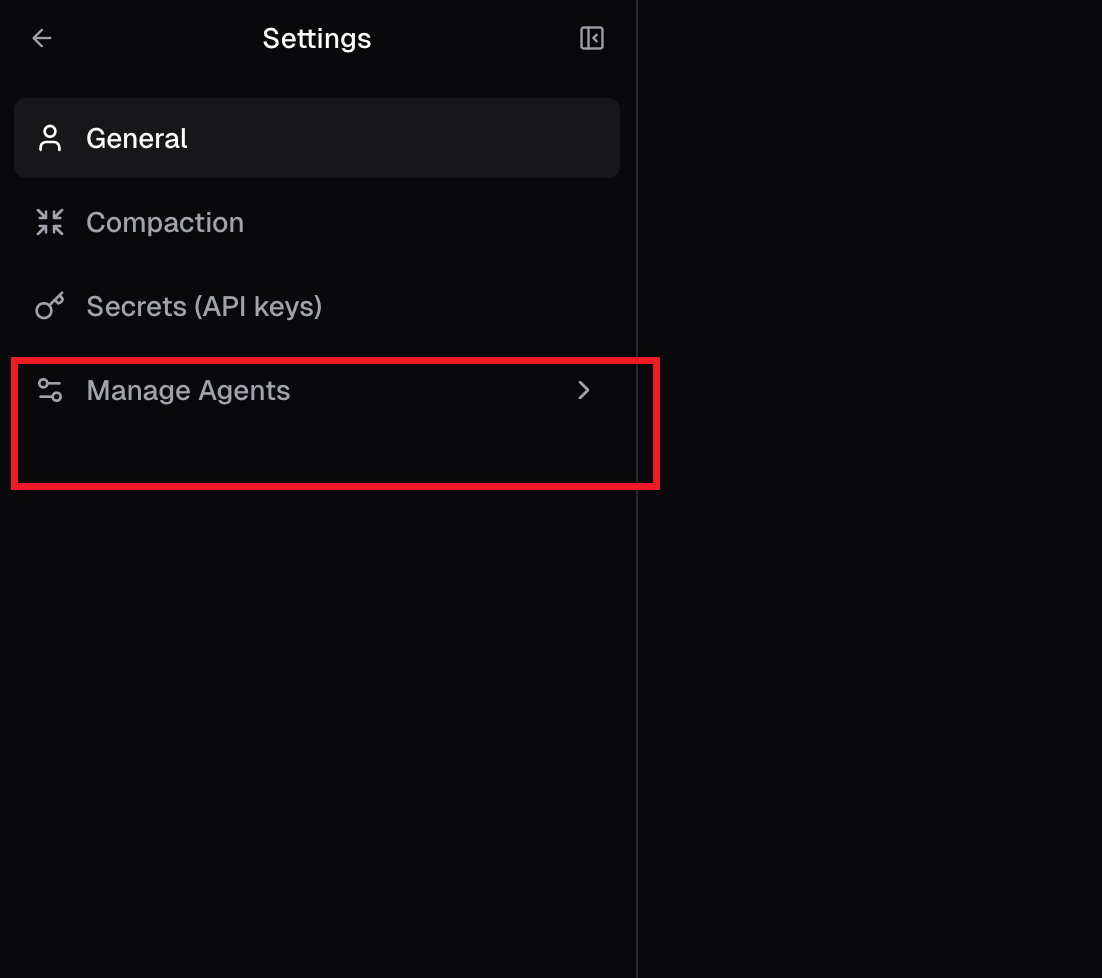
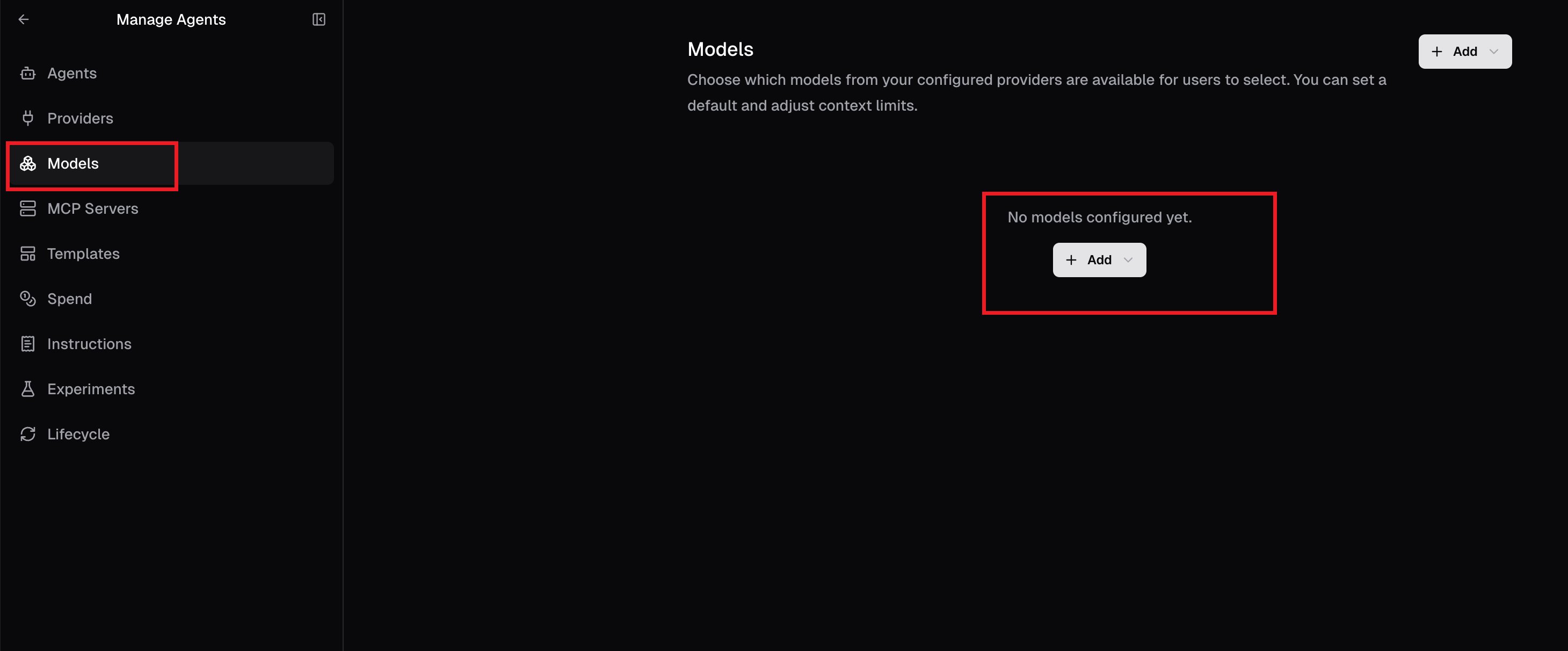
2. Open the Agent management menu In the settings navigation bar, click the "Manage Agent" menu to get ready to bind the API connection.
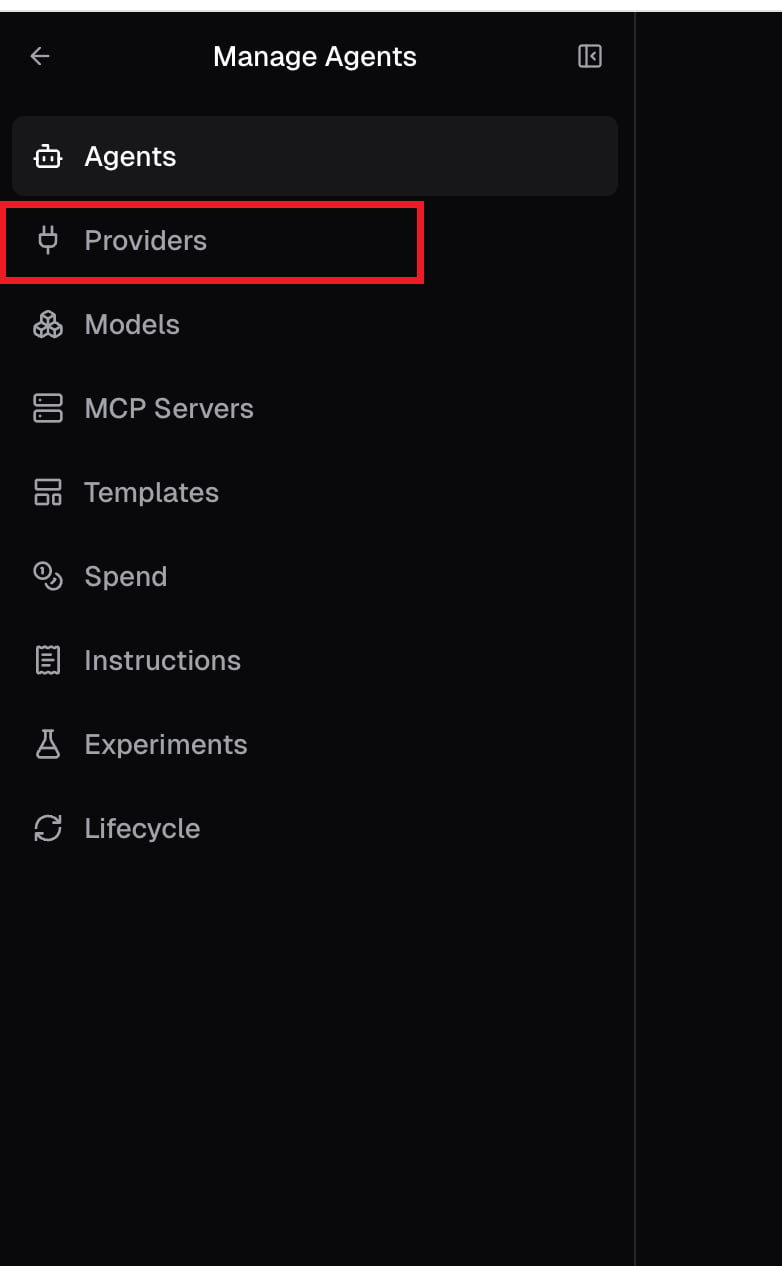
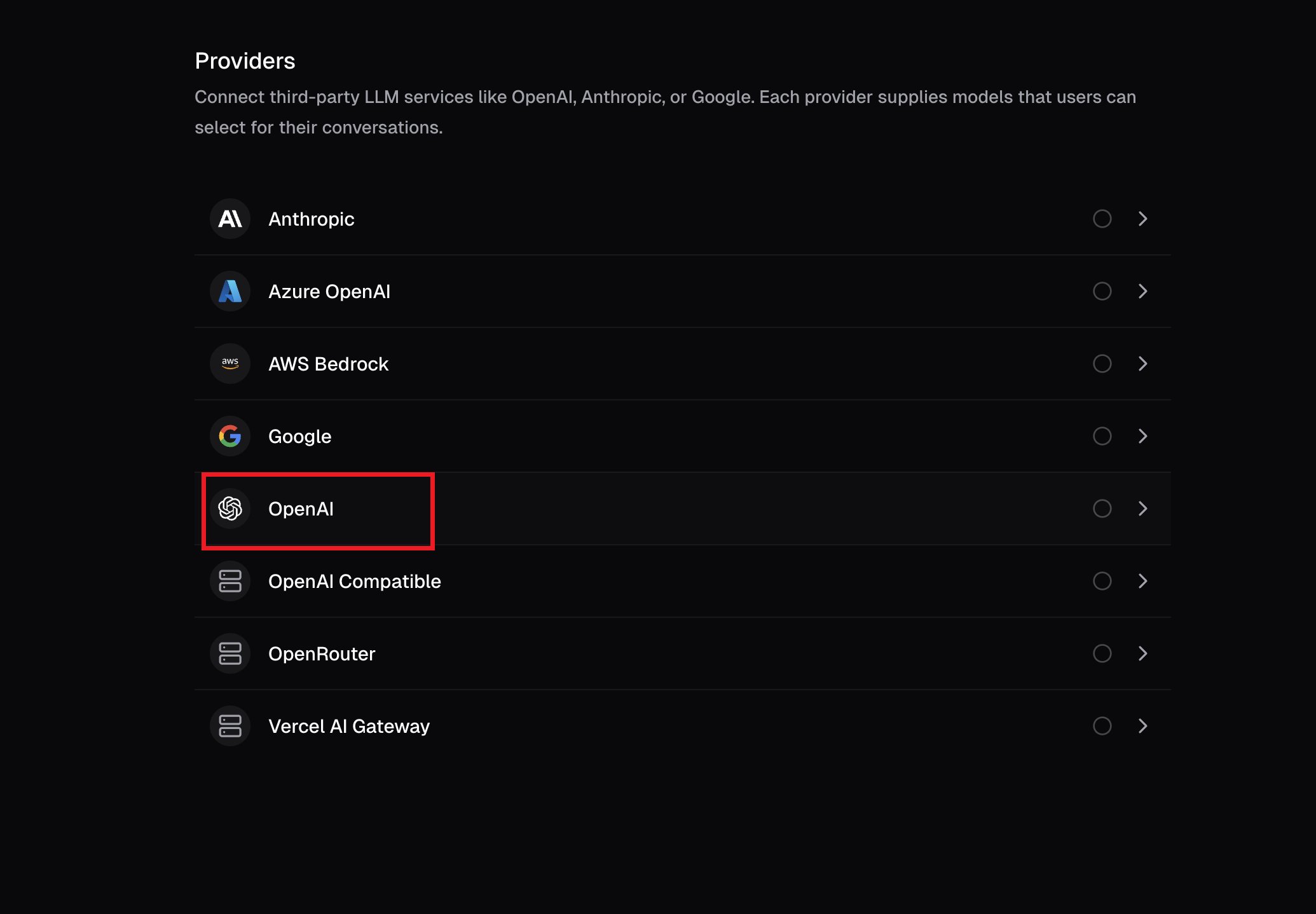
3. Select a model provider (Provider) Go to the "Providers" page. From the list of supported official providers, select OpenAI.
💡 Tip: Why select OpenAI when we are using AnyRouter? Because AnyRouter provides an API fully compatible with the OpenAI standard format. By selecting the OpenAI provider and changing the proxy URL, we can seamlessly connect to AnyRouter's service.
4. Fill in the core API parameters This is the most critical step. Fill in the following information accurately in the configuration form that pops up:
- BaseURL: enter
https://anyrouter.win/v1 - API Key: enter the AnyRouter API Key you obtained in the prerequisites.
After confirming everything is correct, click the "Create" button to save the configuration.
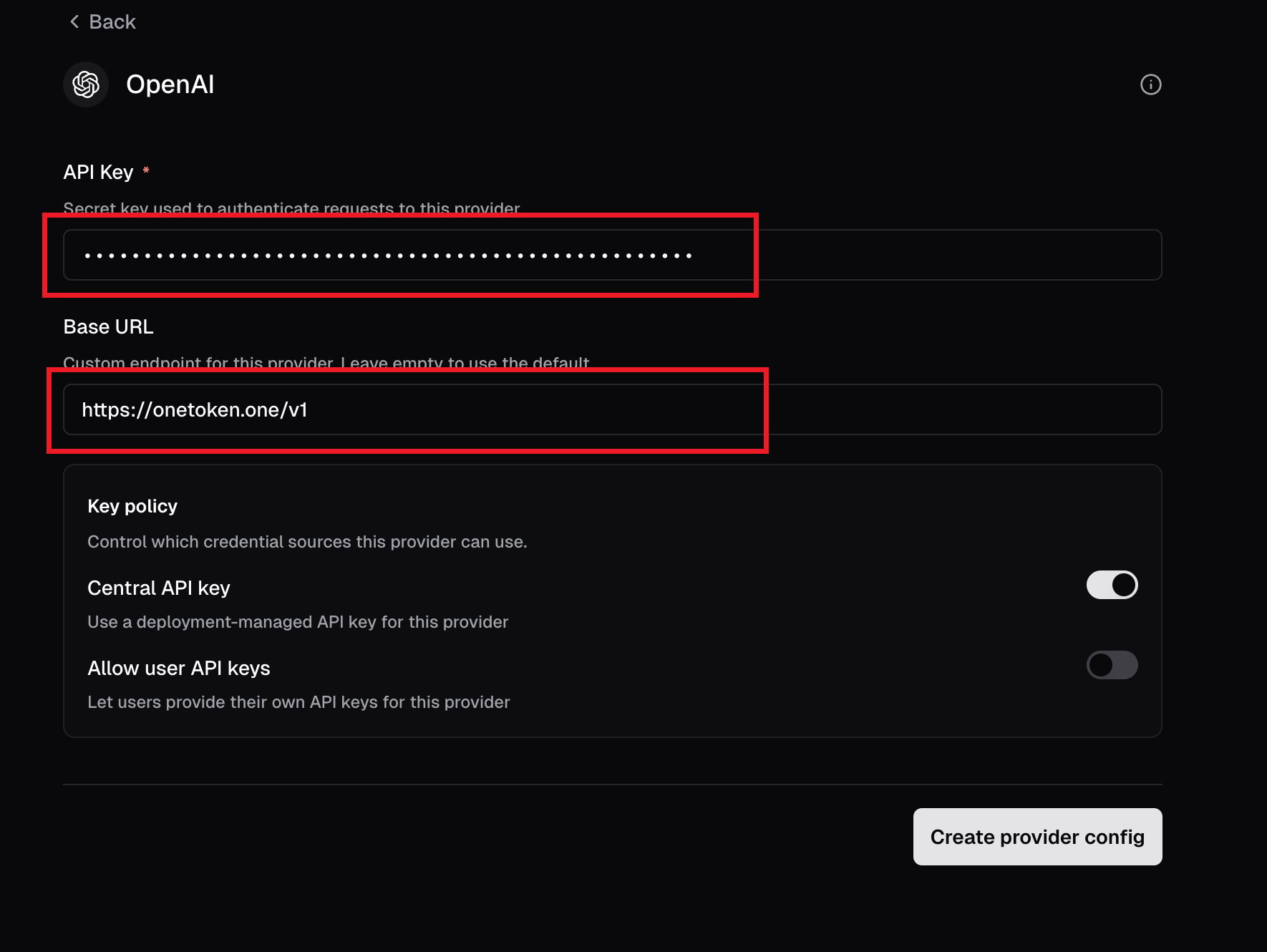
5. Create and bind a model
Once the provider is configured, go to the "Models" page. Click to create a new model, manually enter the name of the model you want to use (e.g. gpt-4o, claude-3-5-sonnet, etc. — see the list of models supported on the AnyRouter platform for exact names), and associate it with the provider you just created.
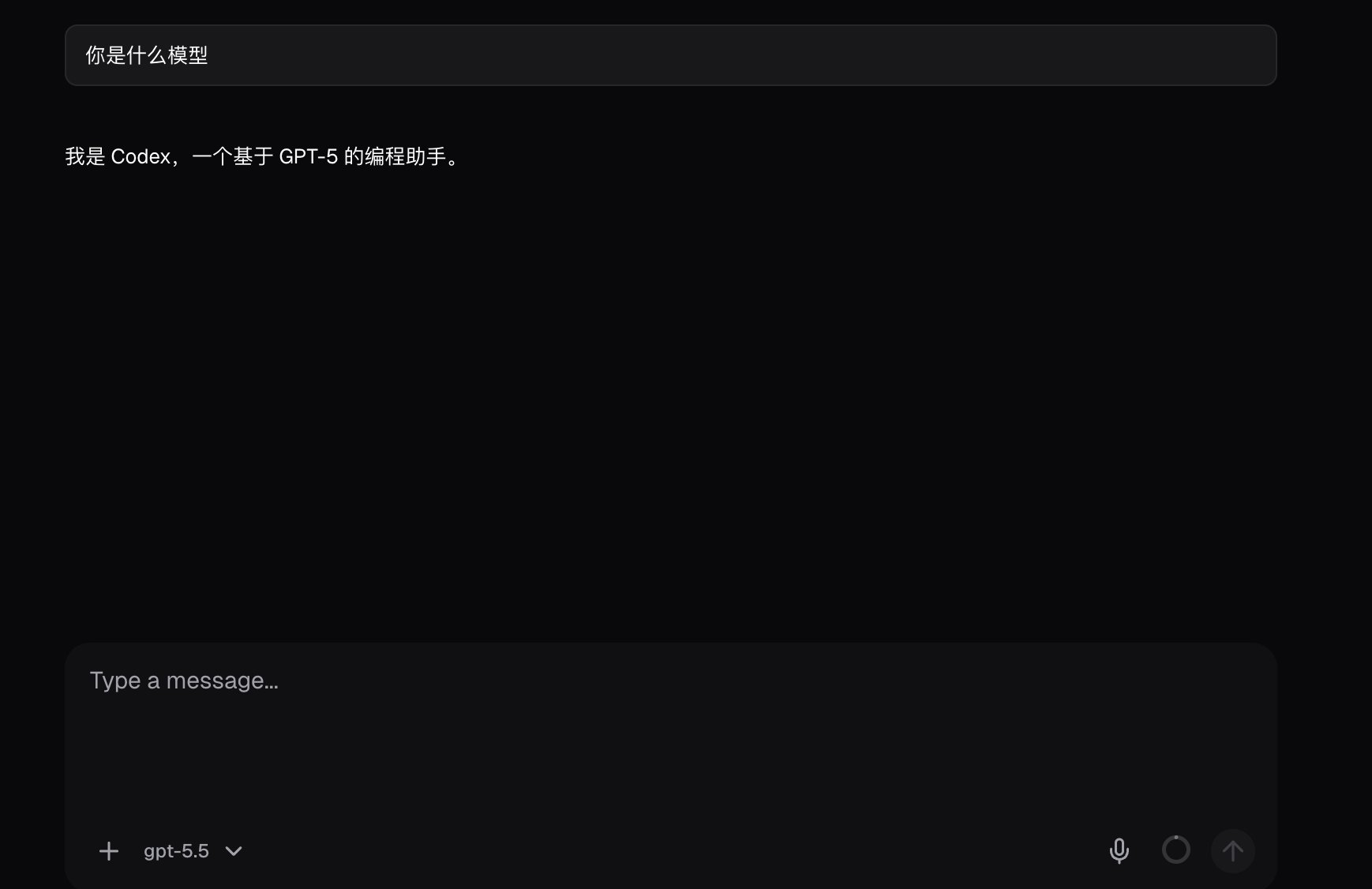
6. Test and use With everything configured, return to Coder's main chat page. Send a simple test message (for example: "Hello, please test the connection"). If the model replies normally and promptly, the configuration is all good and you can start using it!
🛠️ Troubleshooting (FAQ)
If you hit an error during the test in step 6, check the following:
- Wrong URL format: check whether the BaseURL is mistyped and make sure there is no trailing slash (correct example:
https://anyrouter.win/v1). - Invalid key: check that the API Key was copied in full and that no stray spaces slipped in around it.
- Wrong model name: make sure the model name you entered in step 5 actually exists and is supported on the AnyRouter platform.
cline Configuration Guide
Configure the cline AI coding assistant to work with AnyRouter: set the API endpoint to anyrouter.win and add your API key to use any supported model.
Codex Installation and Configuration Guide
Install and configure the Codex CLI on Windows, macOS and Linux: create a codex-group API key, set up config.toml and auth.json for AnyRouter.