Claude Code
Set up Claude Code with AnyRouter: install the CLI, configure BASE_URL and AUTH_TOKEN, use cc-switch or the VS Code extension, and switch to DeepSeek models.
Use Claude Code with AnyRouter
Quick Start
This guide will get you up and running with Claude Code powered by AnyRouter in just a few minutes.
1. Install Claude Code
Native install
curl -fsSL https://claude.ai/install.sh | bashirm https://claude.ai/install.ps1 | iexInstall with npm
Requires Node.js 18 or newer
npm install -g @anthropic-ai/claude-code2. Configure the AnyRouter API
To access AnyRouter's model service through the Anthropic-compatible API, configure the following environment variables.
- Set
BASE_URLtohttps://anyrouter.win - Set
AUTH_TOKENto the API key obtained from the AnyRouter platform MODEL: set it to a model supported in the model list.
- Run the following command in the terminal to check your default shell type.
echo $SHELL- Set the environment variables according to your shell type, as follows:
# Replace ANYROUTER_API_KEY with the key you obtained from the AnyRouter platform
echo 'export BASE_URL="https://anyrouter.win"' >> ~/.zshrc
echo 'export AUTH_TOKEN="ANYROUTER_API_KEY"' >> ~/.zshrc
echo 'export MODEL="claude-sonnet-4-5"' >> ~/.zshrc
# Replace ANYROUTER_API_KEY with the key you obtained from the AnyRouter platform
echo 'export BASE_URL="https://anyrouter.win"' >> ~/.bash_profile
echo 'export AUTH_TOKEN="ANYROUTER_API_KEY"' >> ~/.bash_profile
echo 'export MODEL="claude-sonnet-4-5"' >> ~/.bash_profile- Run the following command in the terminal to apply the environment variables.
source ~/.zshrcsource ~/.bash_profile- Open a new terminal and run the following commands to check that the environment variables took effect.
echo $BASE_URL
echo $AUTH_TOKEN
echo $MODELOn Windows, you can set the AnyRouter Base URL and API Key as environment variables via CMD or PowerShell.
- Run the following commands in CMD to set the environment variables.
REM Replace ANYROUTER_API_KEY with your AnyRouter API Key
setx AUTH_TOKEN "ANYROUTER_API_KEY"
setx BASE_URL "https://anyrouter.win"
setx MODEL "claude-sonnet-4-5"- Open a new CMD window and run the following commands to check that the environment variables took effect.
echo %AUTH_TOKEN%
echo %BASE_URL%
echo %MODEL%- Run the following commands in PowerShell to set the environment variables.
# Replace ANYROUTER_API_KEY with your AnyRouter API Key
[Environment]::SetEnvironmentVariable("AUTH_TOKEN", "ANYROUTER_API_KEY", [EnvironmentVariableTarget]::User)
[Environment]::SetEnvironmentVariable("BASE_URL", "https://anyrouter.win", [EnvironmentVariableTarget]::User)
[Environment]::SetEnvironmentVariable("MODEL", "claude-sonnet-4-5", [EnvironmentVariableTarget]::User)- Open a new PowerShell window and run the following commands to check that the environment variables took effect.
echo $env:AUTH_TOKEN
echo $env:BASE_URL
echo $env:MODEL
3. Get started
Once configured, go to your working directory and run the claude command in the terminal to start Claude Code.
$ cd /path/your-project
> claude
The first time you use Claude Code, it may force you to log in to an Anthropic account. Follow the steps below to skip that flow:
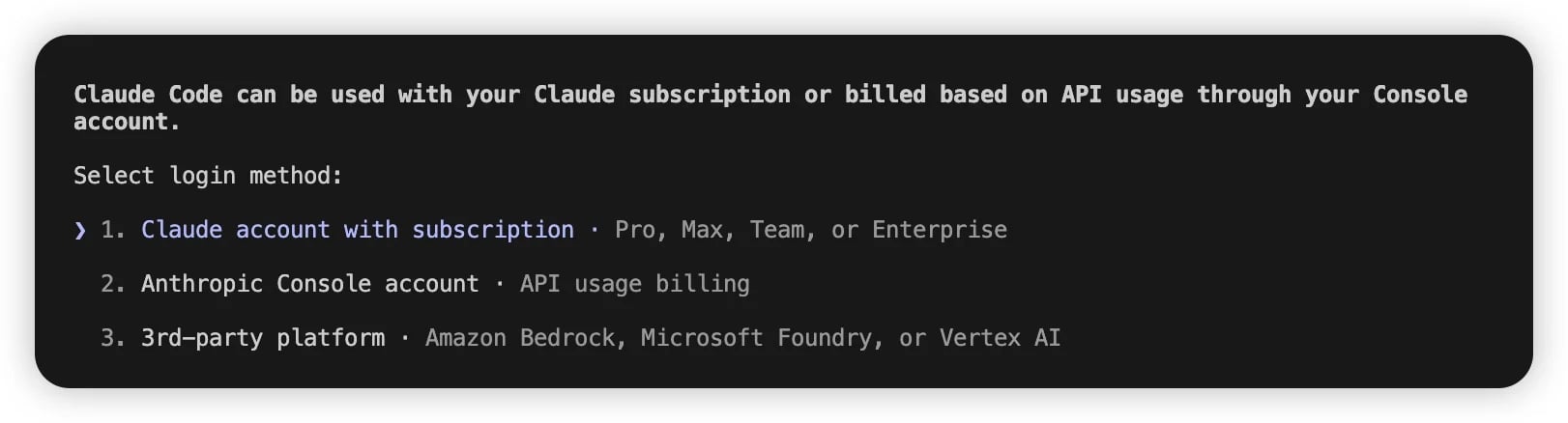
- Locate the
.claude.jsonfile in your home directory, at one of the following paths:- macOS / Linux:
~/.claude.json - Windows:
C:\Users\%USERNAME%\.claude.json
- macOS / Linux:
- Set the
hasCompletedOnboardingfield totrue
{
  "hasCompletedOnboarding": true
}- Save the file, then run
claudeagain in the terminal.
(Optional) More ways to configure models
Claude Code supports the following model configuration methods, listed from highest to lowest priority. Higher-priority settings override lower-priority ones.
- During a conversation: run the
/model <model-name>command to switch models. Good for switching models temporarily.
/model claude-sonnet-4-5- When launching Claude Code: run
claude --model <model-name>to specify the model. Applies to a single session.
claude --model claude-sonnet-4-5- Set environment variables: configure different model tiers by task complexity, and Claude Code will automatically pick the appropriate model for each task type. Applies globally.
export DEFAULT_OPUS_MODEL="claude-opus-4-5"
export DEFAULT_SONNET_MODEL="claude-sonnet-4-5"
export DEFAULT_HAIKU_MODEL="claude-haiku-4-5"
Where:
DEFAULT_OPUS_MODEL: for demanding tasks such as complex reasoning and architecture design.DEFAULT_SONNET_MODEL: for everyday tasks such as writing code and implementing features.DEFAULT_HAIKU_MODEL: for simple tasks such as syntax checks and file searches.
- Set it permanently in the settings.json file: create a
settings.jsonfile in the project root or your home directory and add the model configuration to it, for permanent project-level or user-level configuration respectively.
{
  "env": {
    "DEFAULT_OPUS_MODEL": "claude-opus-4-5",
    "DEFAULT_SONNET_MODEL": "claude-sonnet-4-5",
    "DEFAULT_HAIKU_MODEL": "claude-haiku-4-5"
  }
}
Configure via cc-switch
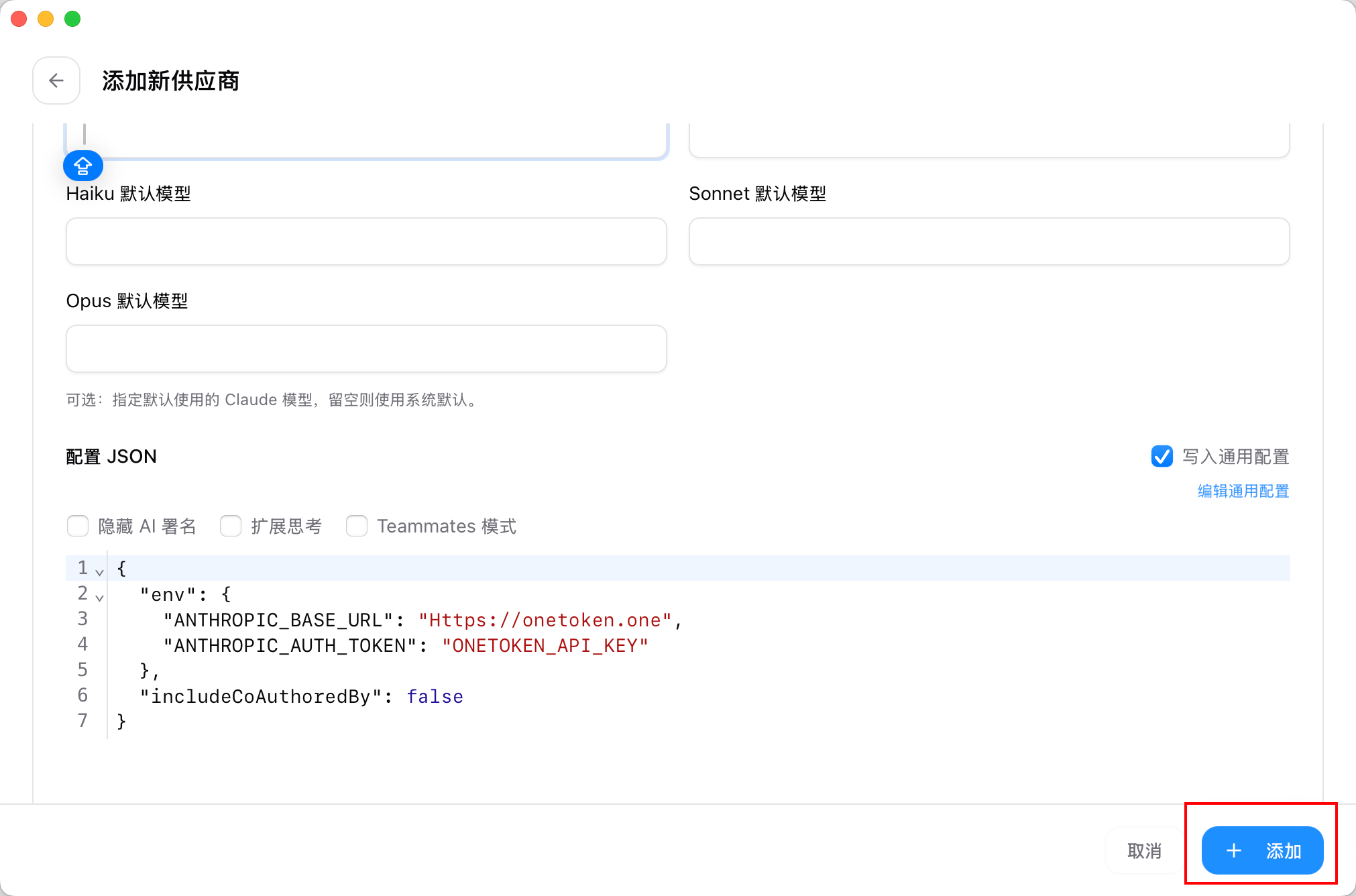
- Run CC-Switch and click "Add Provider".
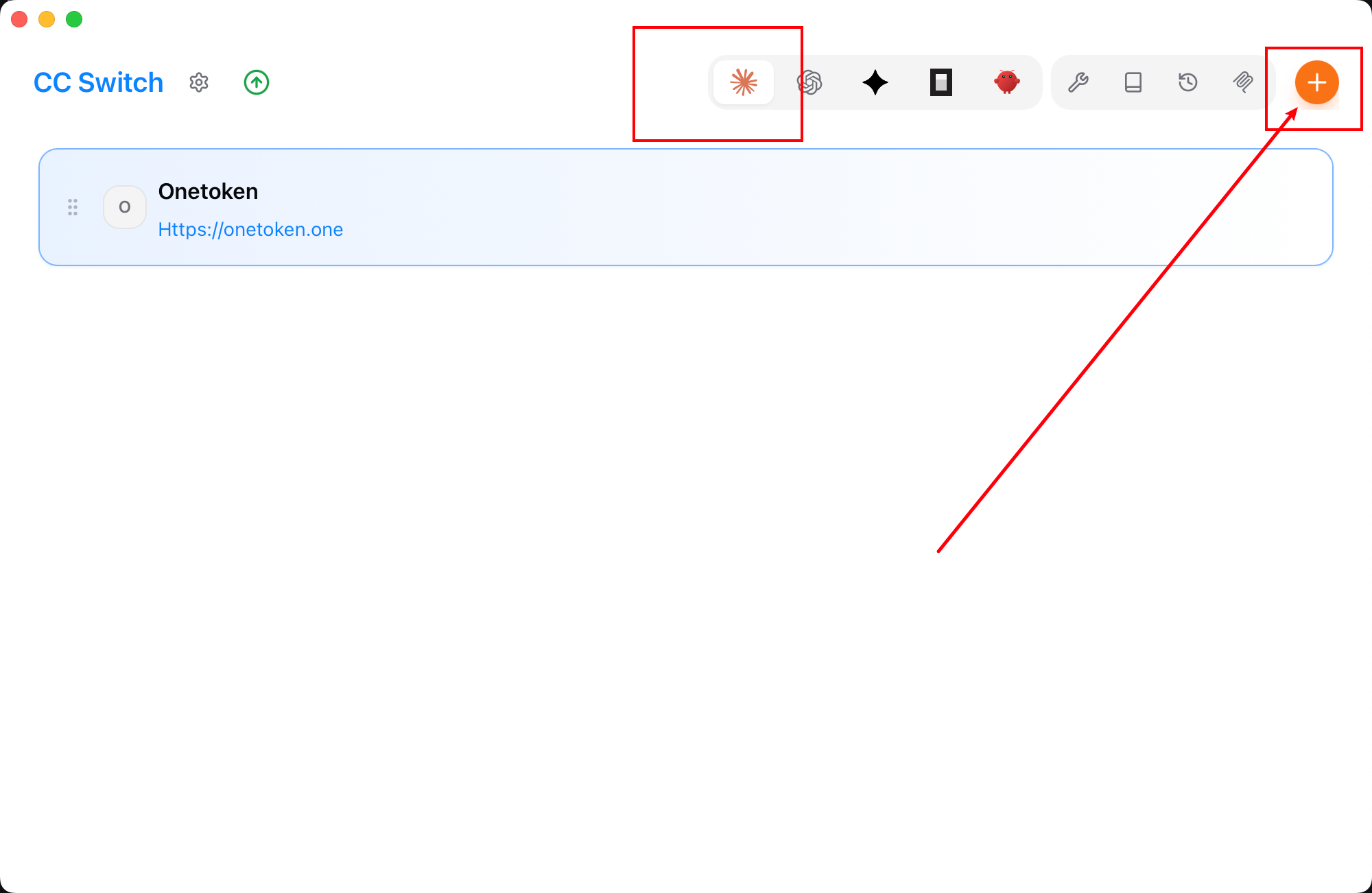
- Select "Custom Configuration" from the preset list.
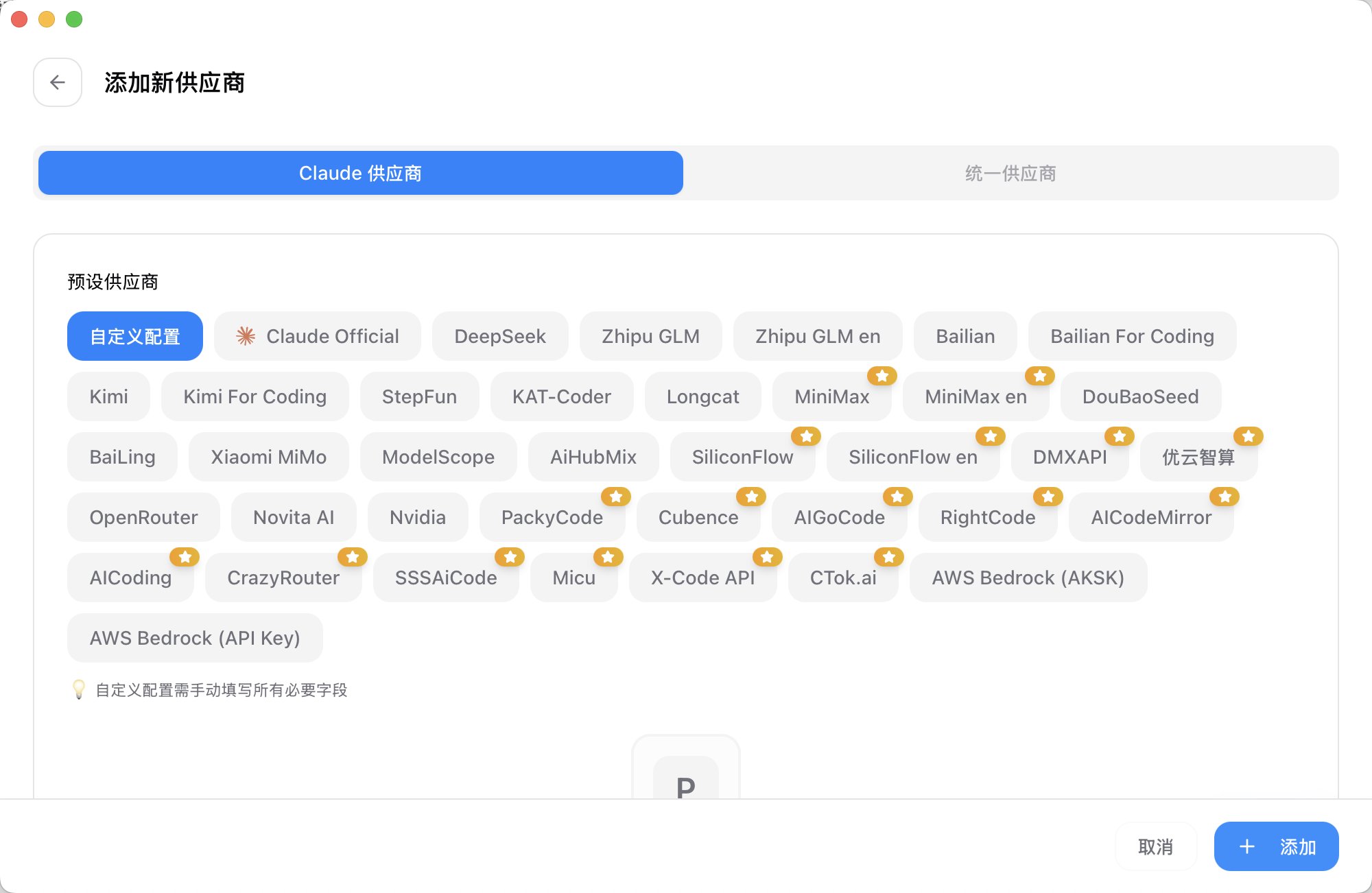
- Fill in your API key and endpoint URL in the "API Key" section
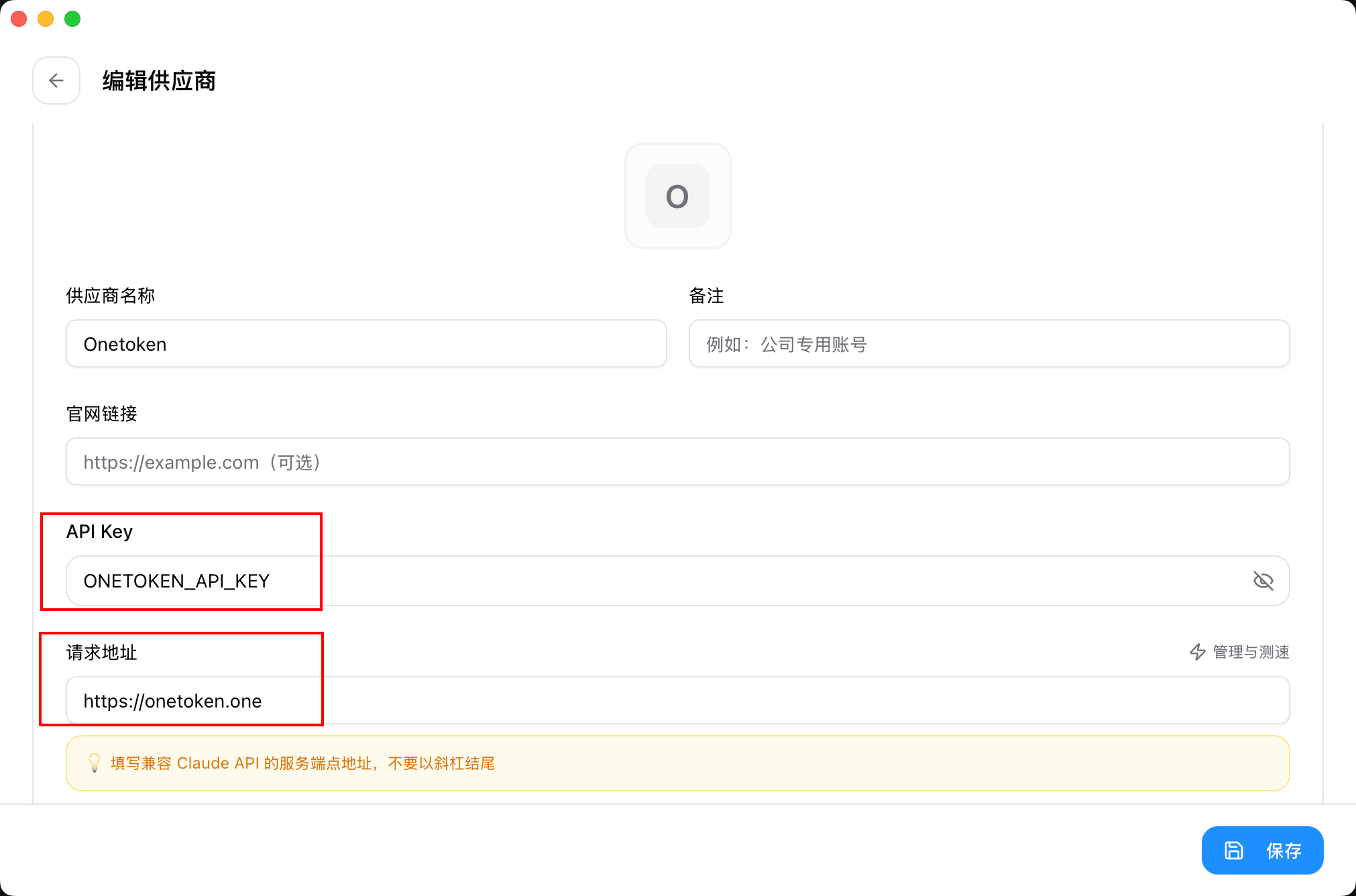
- Once configured, click "Add" to save the settings.
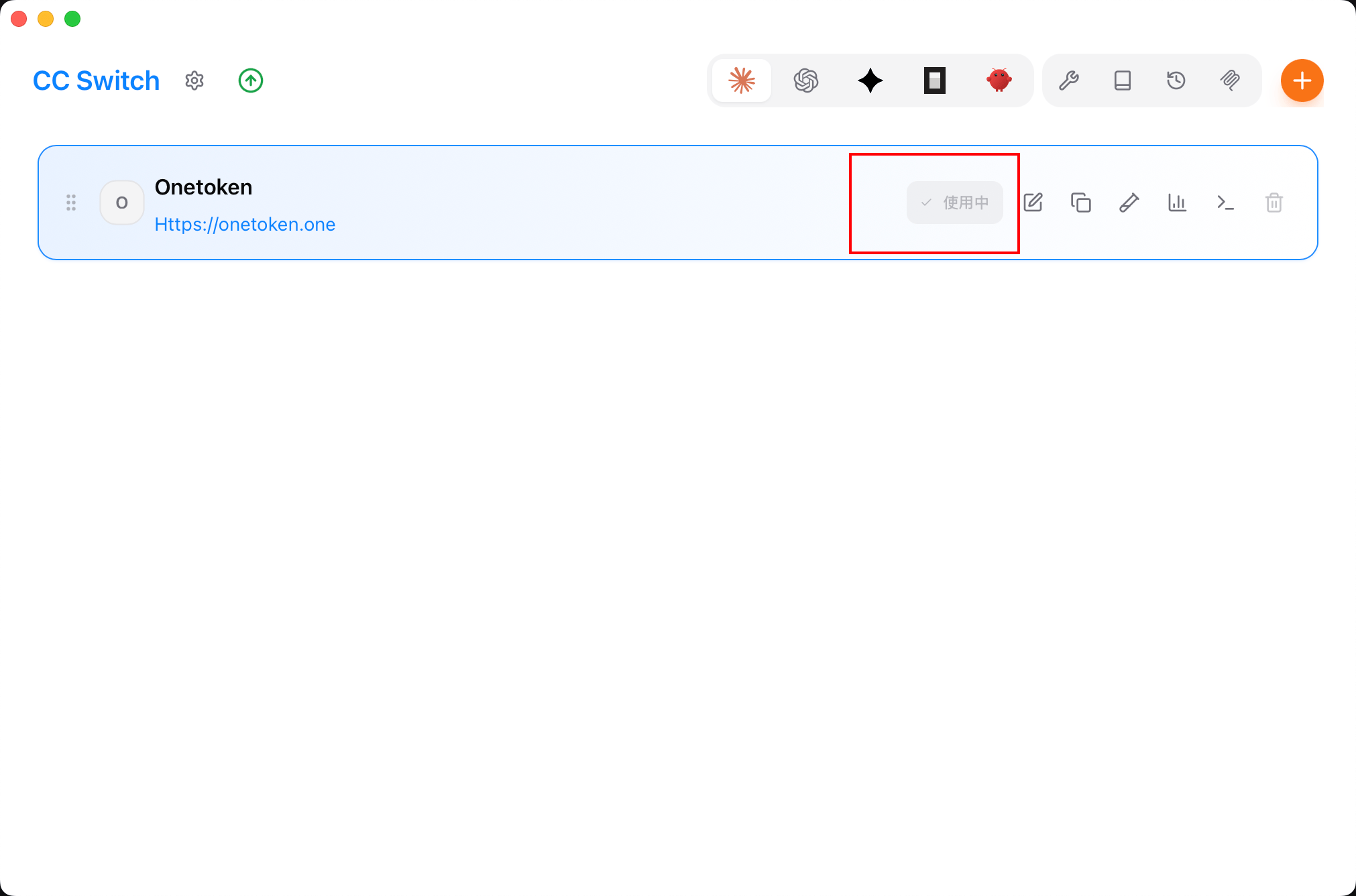
- Back on the home page, select "anyrouter" in the provider list and click "Start" to begin using it.
Configure via the VS Code extension
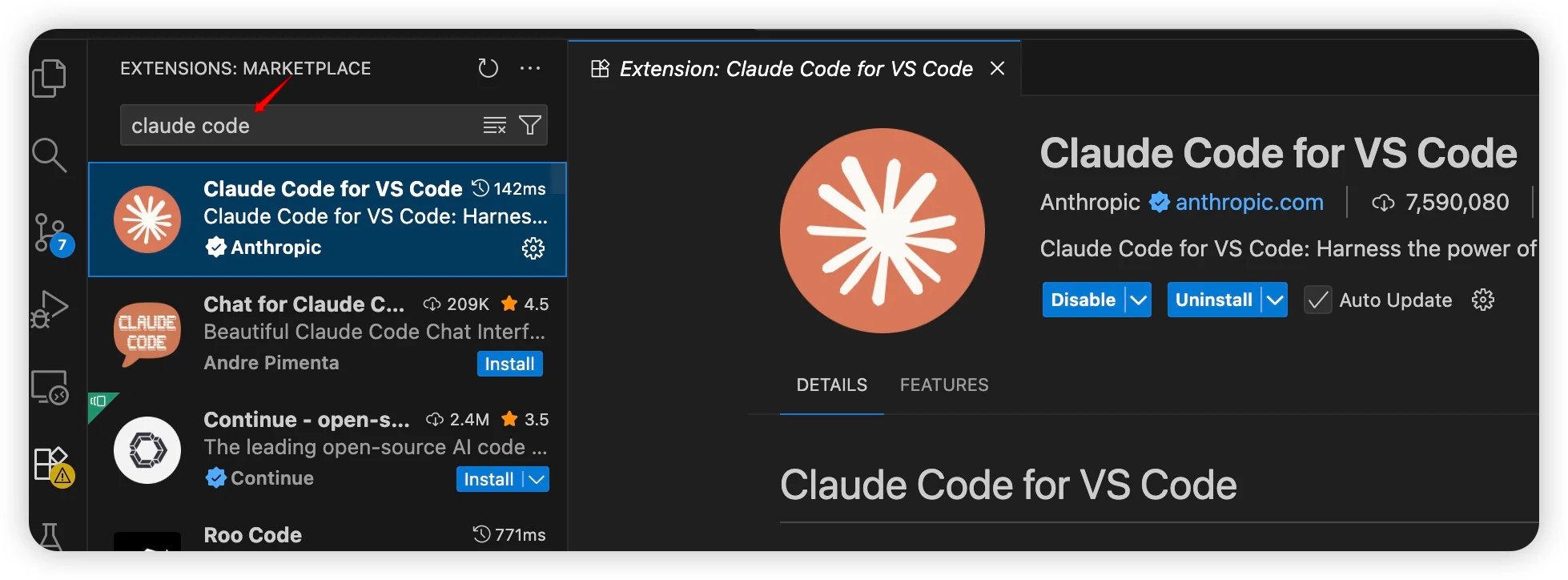
- Run VS Code and install the extension.
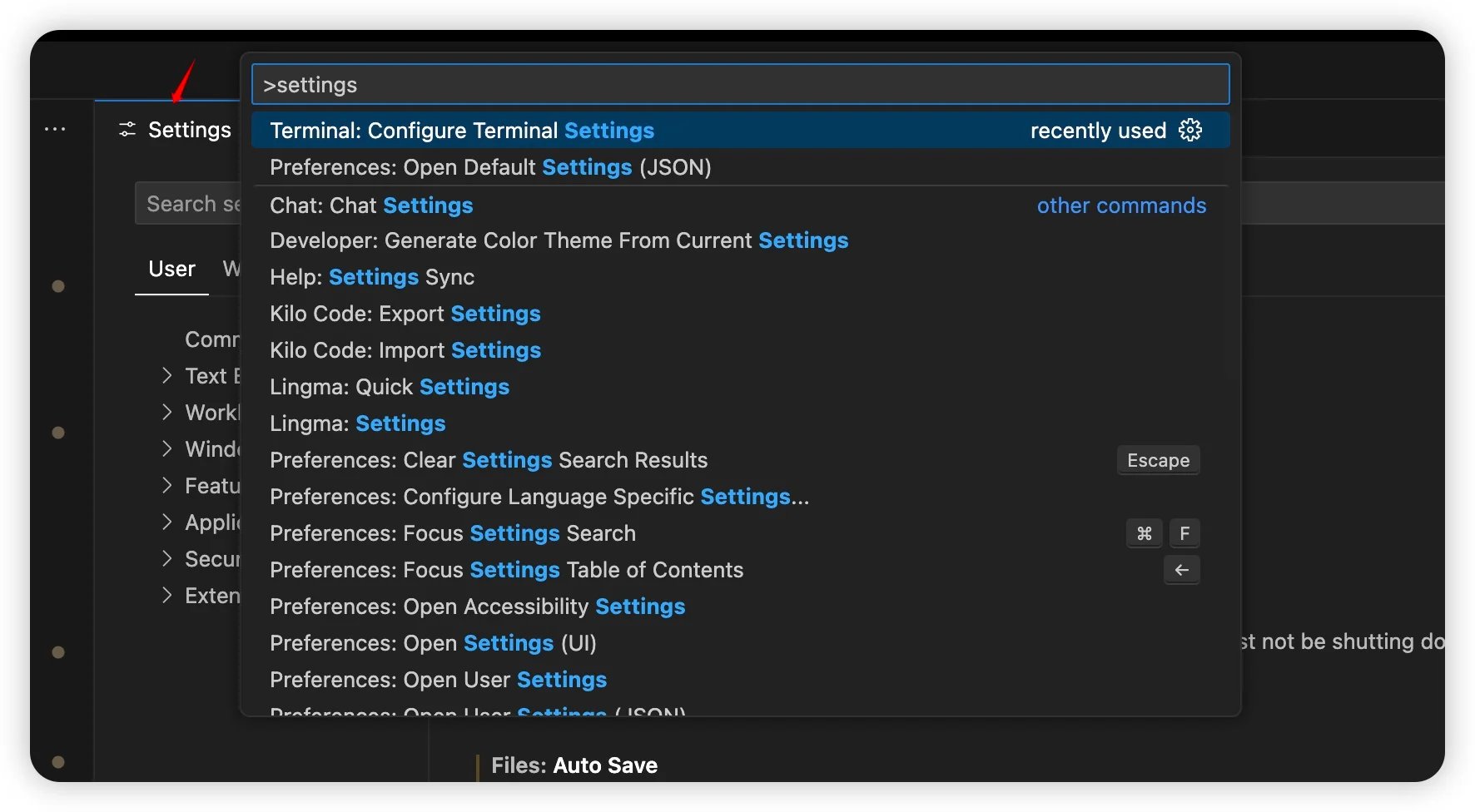
- Press
Ctrl + Shift + P(orCmd + Shift + P) and typeSettingsto open the settings.
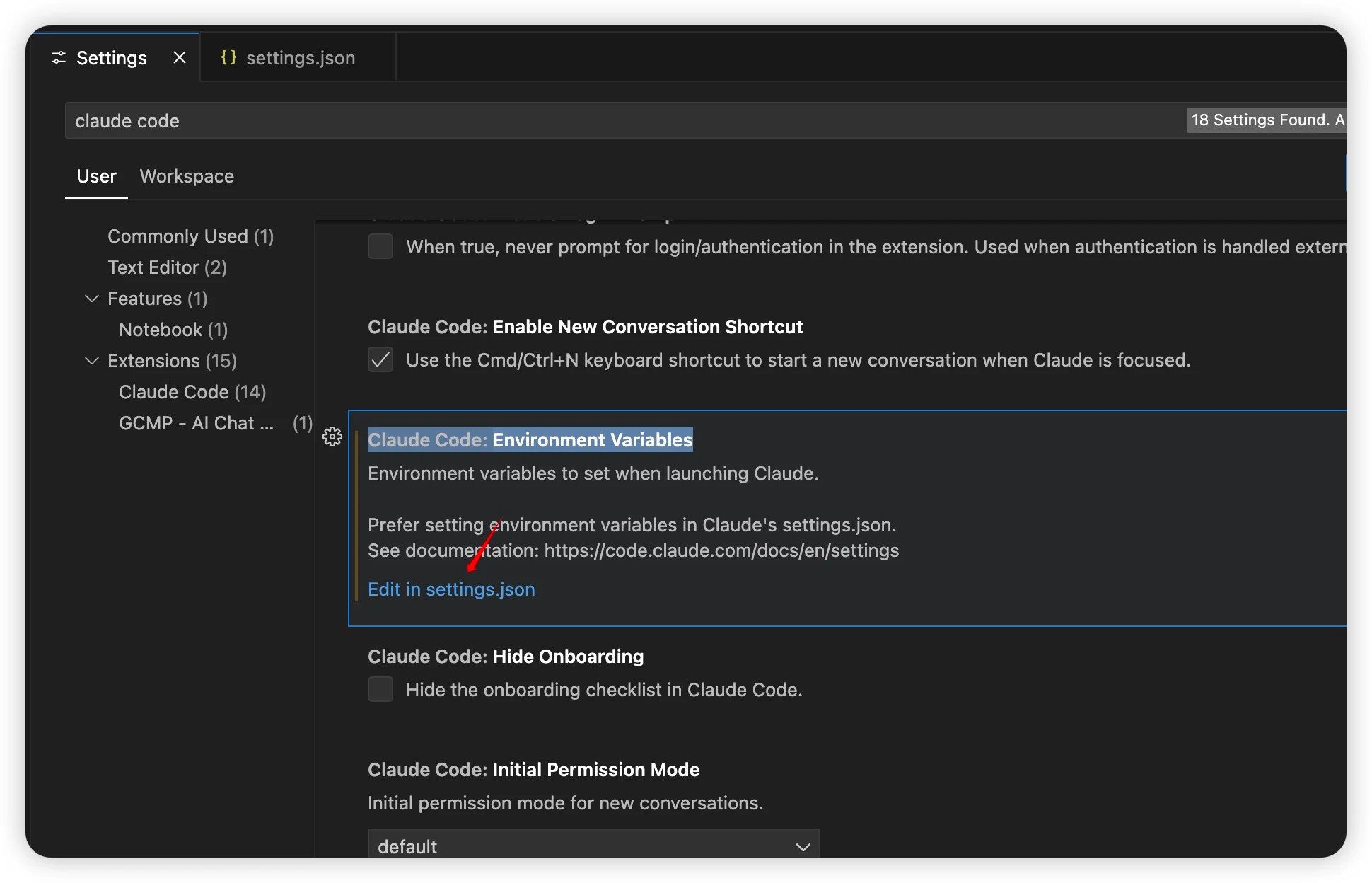
- Search for
Claude Code, then findClaude Code: Environment Variable→Edit in settings.json.
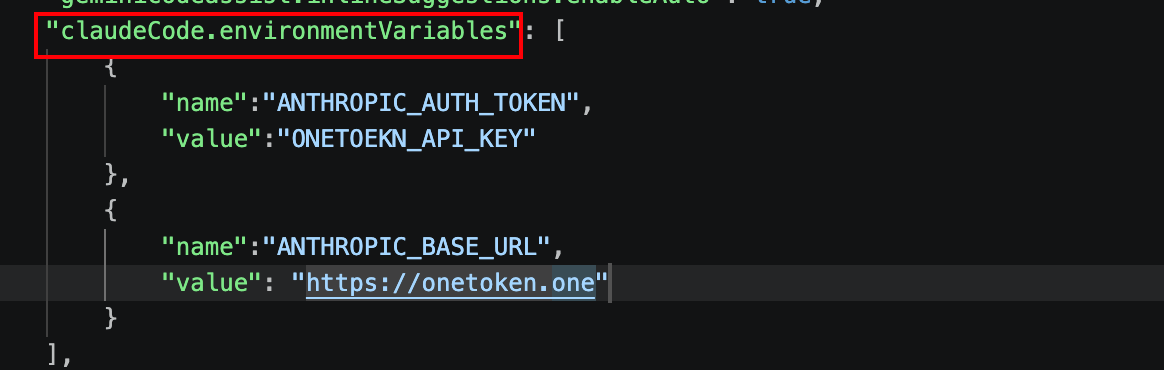
- Fill in the AnyRouter details under
claudeCode.environmentVariables.
Using DeepSeek models in Claude Code
Available models: deepseek-r1-distill-qwen-14b deepseek-v3 deepseek-v3-0324 deepseek-v3-1-250821 deepseek-v3.2 deepseek-v4-flash deepseek-v4-pro
Option 1: edit the config file directly
Locate the .claude.json file in your home directory, at one of the following paths:
- macOS / Linux:
~/.claude.json - Windows:
C:\Users\%USERNAME%\.claude.json
Change the value of ANTHROPIC_MODEL to a DeepSeek model name
{
  "env": {
    "ANTHROPIC_AUTH_TOKEN": "sk-**",
    "ANTHROPIC_BASE_URL": "https://anyrouter.win",
    "ANTHROPIC_MODEL": "deepseek-v4-pro"
  },
  "includeCoAuthoredBy": false
}
Option 2: use CC Switch to edit the config file — change the model name to a DeepSeek model name and restart Claude Code.
FAQ
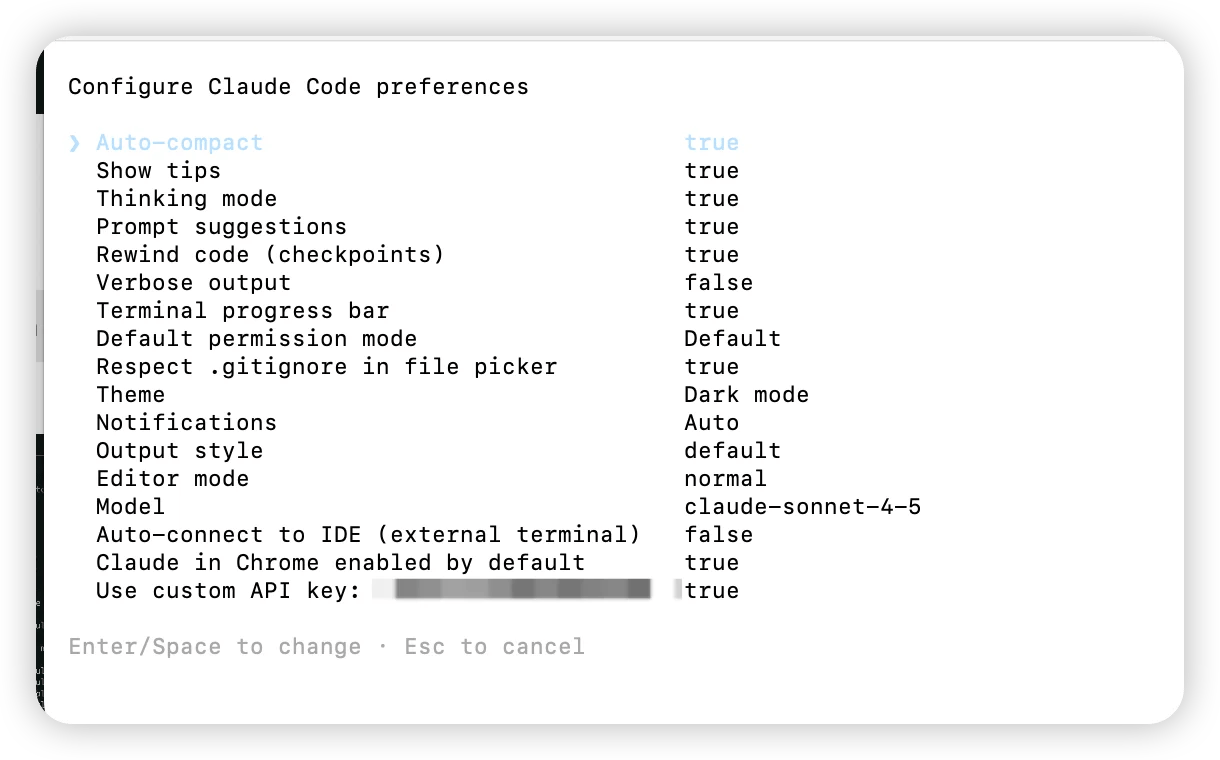
Q: In Claude Code, you get "401, No token provided...."
Open the Claude terminal, type /config, find the Use custom API key option, and check whether the token is configured correctly.
Q: On macOS, installation succeeds but you still get: zsh: command not found: claude
This means the Claude CLI is installed, but its executable directory has not been added to the system PATH.
- Confirm the Claude install location. The official Claude Code script usually installs to one of the following directories:
~/.claude/bin~/.local/bin
Run in the terminal:
ls -l ~/.claude/bin
or
ls -l ~/.local/bin | grep claude
If you can see the claude file, the installation succeeded and only PATH is unconfigured.
- Add the install directory to PATH. Run the command matching the actual install location:
Case A: installed in ~/.claude/bin
echo 'export PATH="$HOME/.claude/bin:$PATH"' >> ~/.zshrc
source ~/.zshrc
Case B: installed in ~/.local/bin
echo 'export PATH="$HOME/.local/bin:$PATH"' >> ~/.zshrc
source ~/.zshrc- Verify that it works. Run:
which claude
claude -v
If you can see the claude path and version number, the installation succeeded.
Q: Claude Code cannot connect to the Anthropic service
After upgrading to the latest version of Claude Code, if you cannot connect to the Anthropic service or authentication fails, it is usually because the authentication request header name has changed. The new version requires changing the header from API_KEY to AUTH_TOKEN. The API key value stays the same — just update the header name and reload the configuration. Follow this document to reconfigure.
Q: Login:API Error: 403
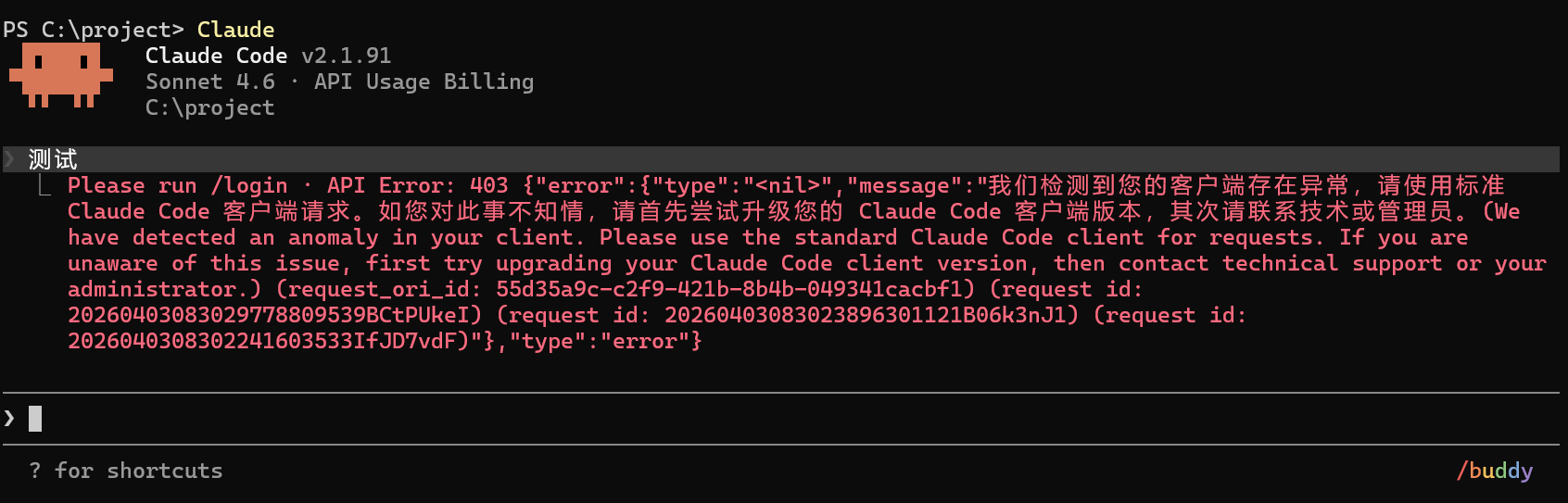
Upgrade Claude Code to the latest version, and turn off CC Switch's local proxy and failover features
Enjoy!
Claude Desktop
Connect Claude Desktop to the AnyRouter gateway: enable Developer Mode, set the gateway URL and API key, then pick a model and chat without an Anthropic login.
ClawX
Quick ClawX setup with AnyRouter: add a custom model provider, enter your API key and base URL, and start using the platform's models in just four steps.